Connect cameras
Step 1 of 14
Top and Bottom Camera
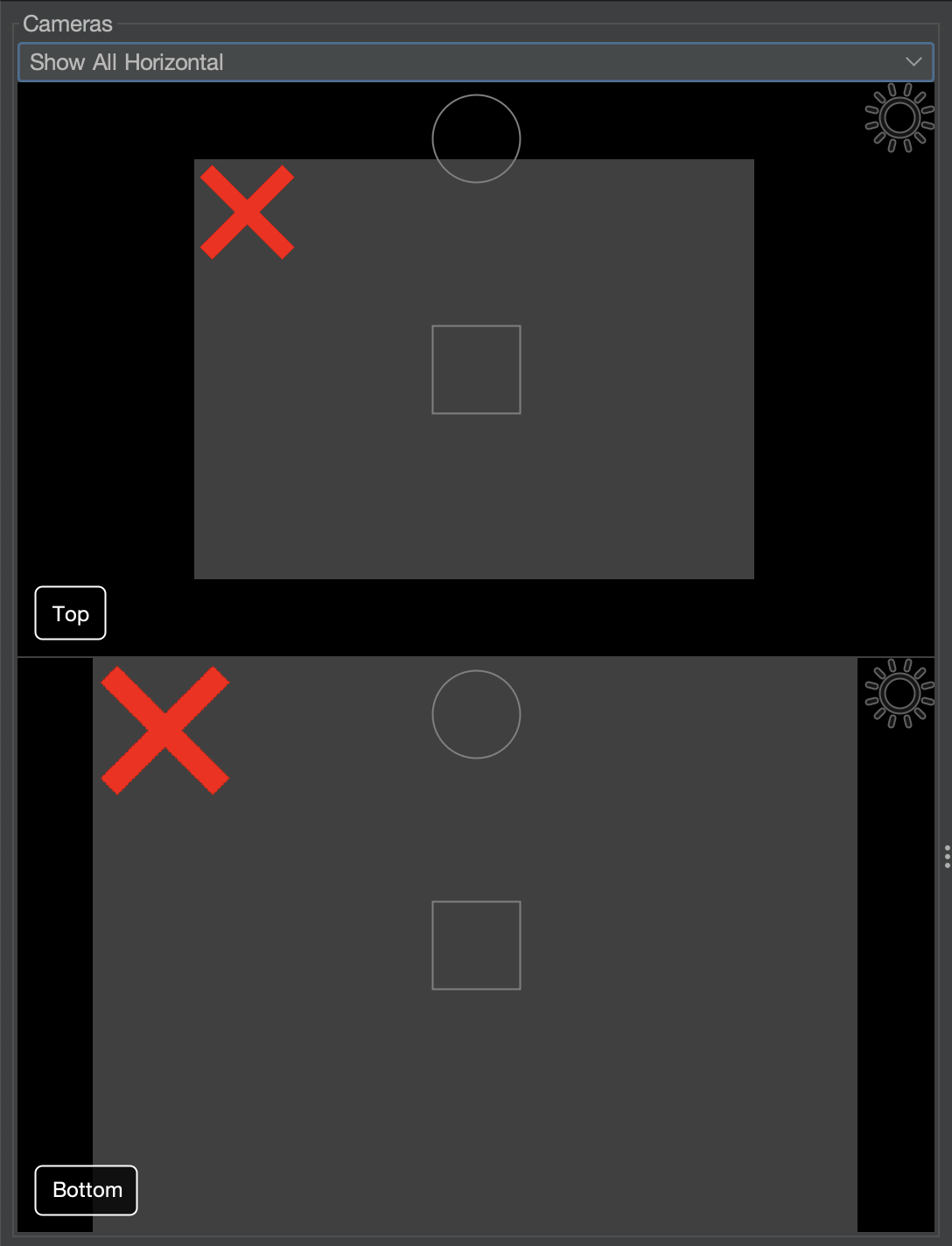
- Your LumenPnP has two cameras used throughout calibration and operation.
- Top Camera: Looks downward at the machine's work area and is used for locating fiducials and identifying positions.
- Bottom Camera: Looks upward at the nozzle tips and components for accurate alignment.
Step 2 of 14
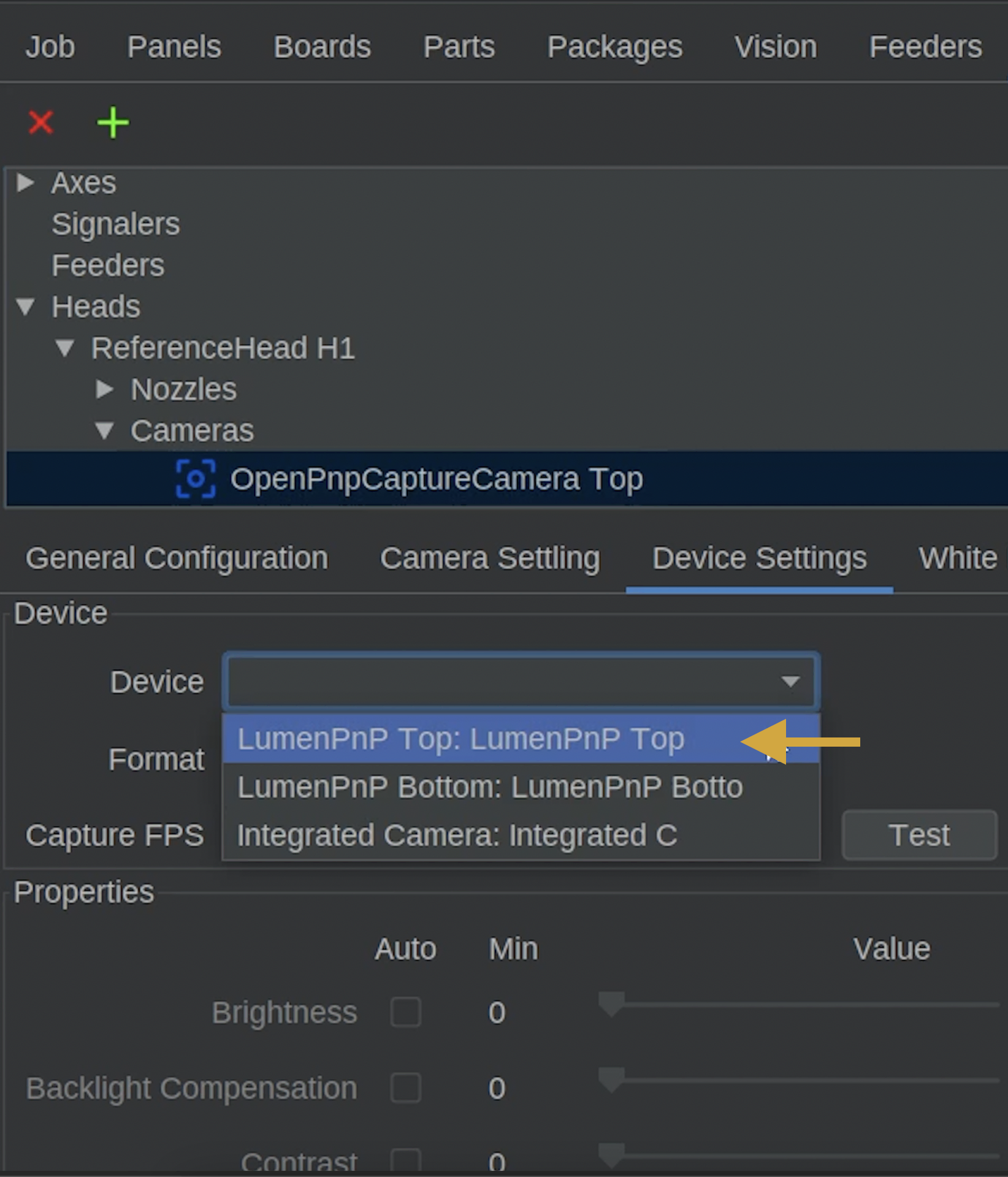
Step 1: Locate the Top Camera
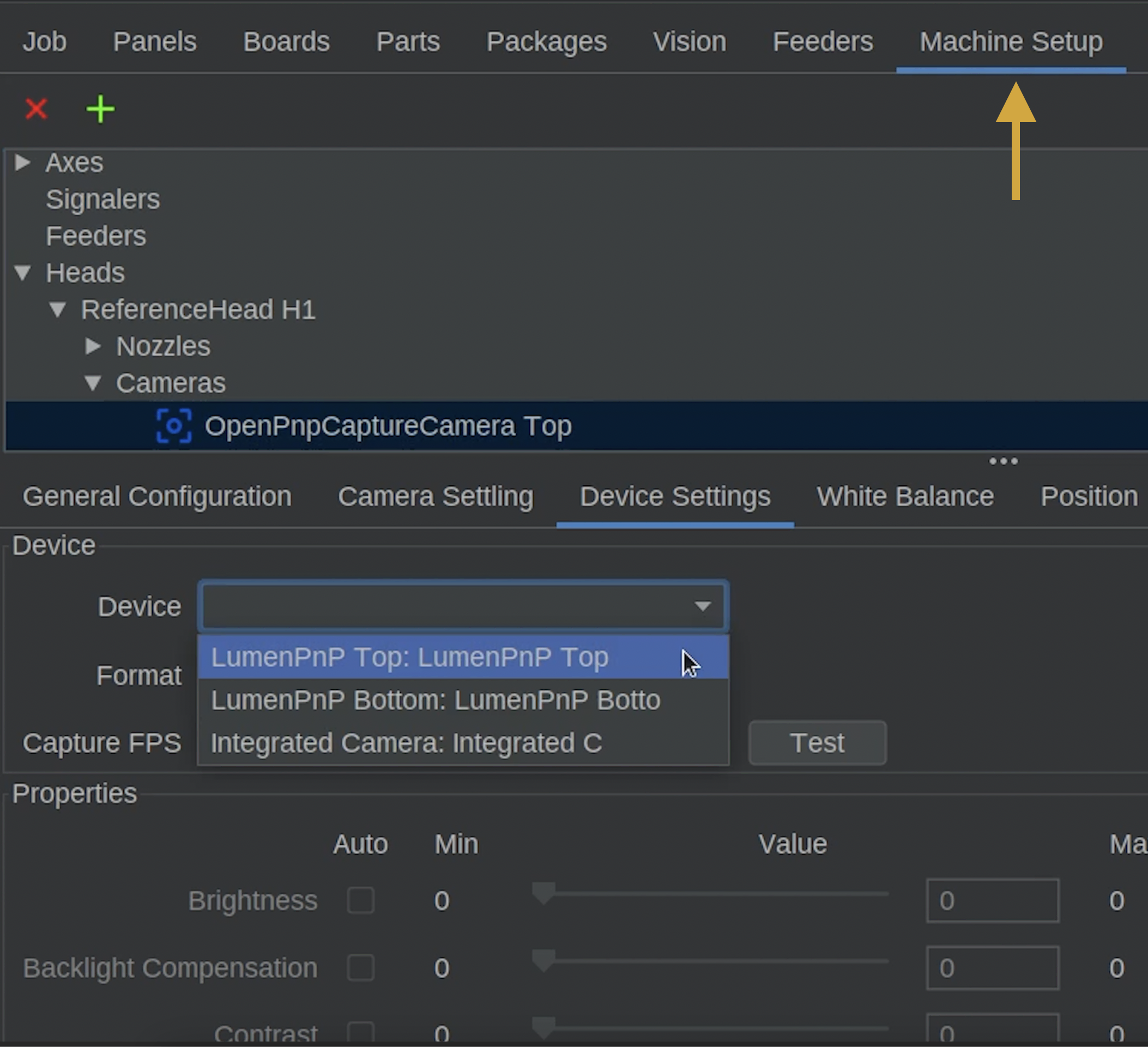
- Open the Machine Setup tab.
-
Navigate to:
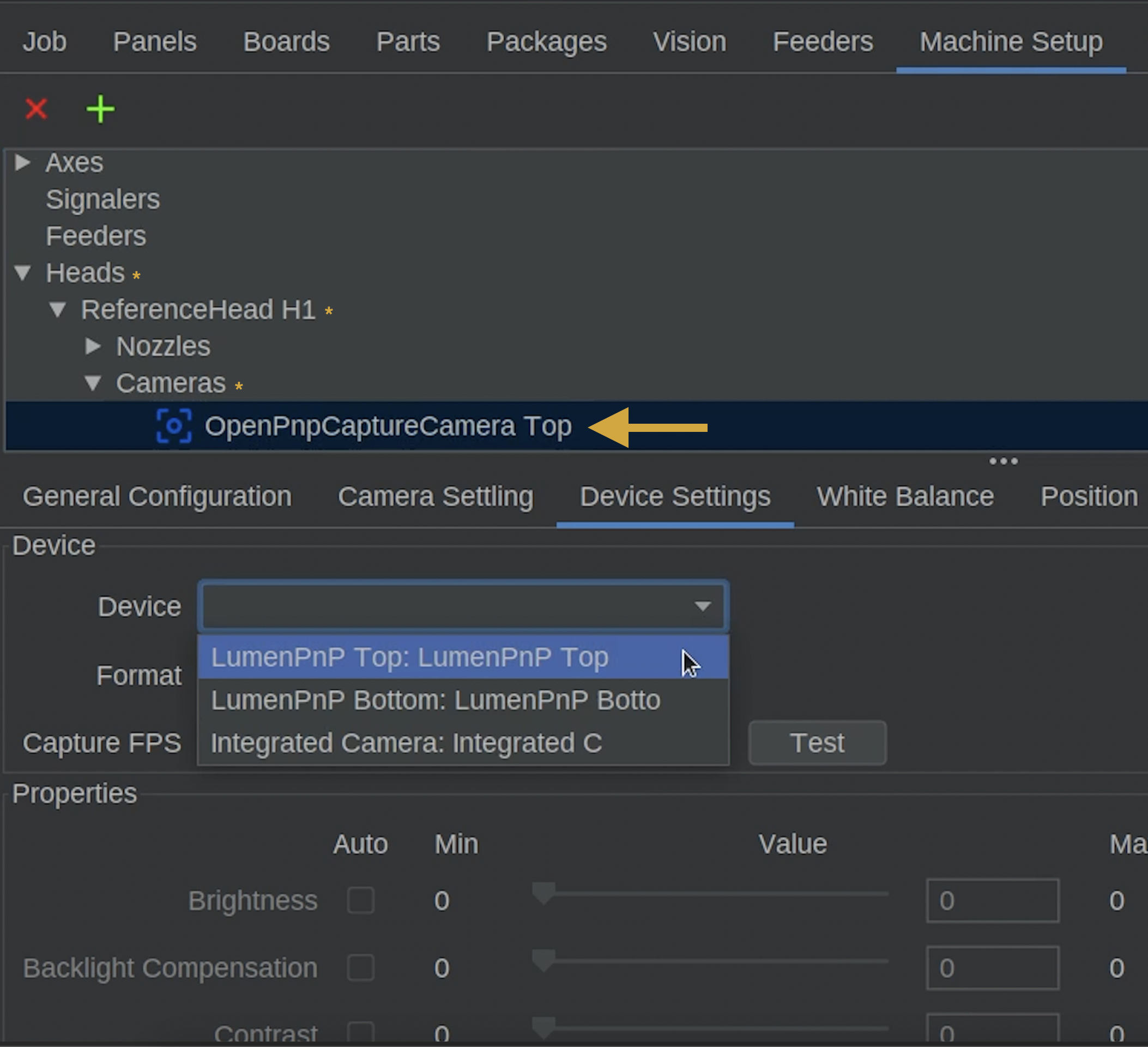
Heads > ReferenceHead H1 > Cameras > OpenPnpCaptureCamera Top -
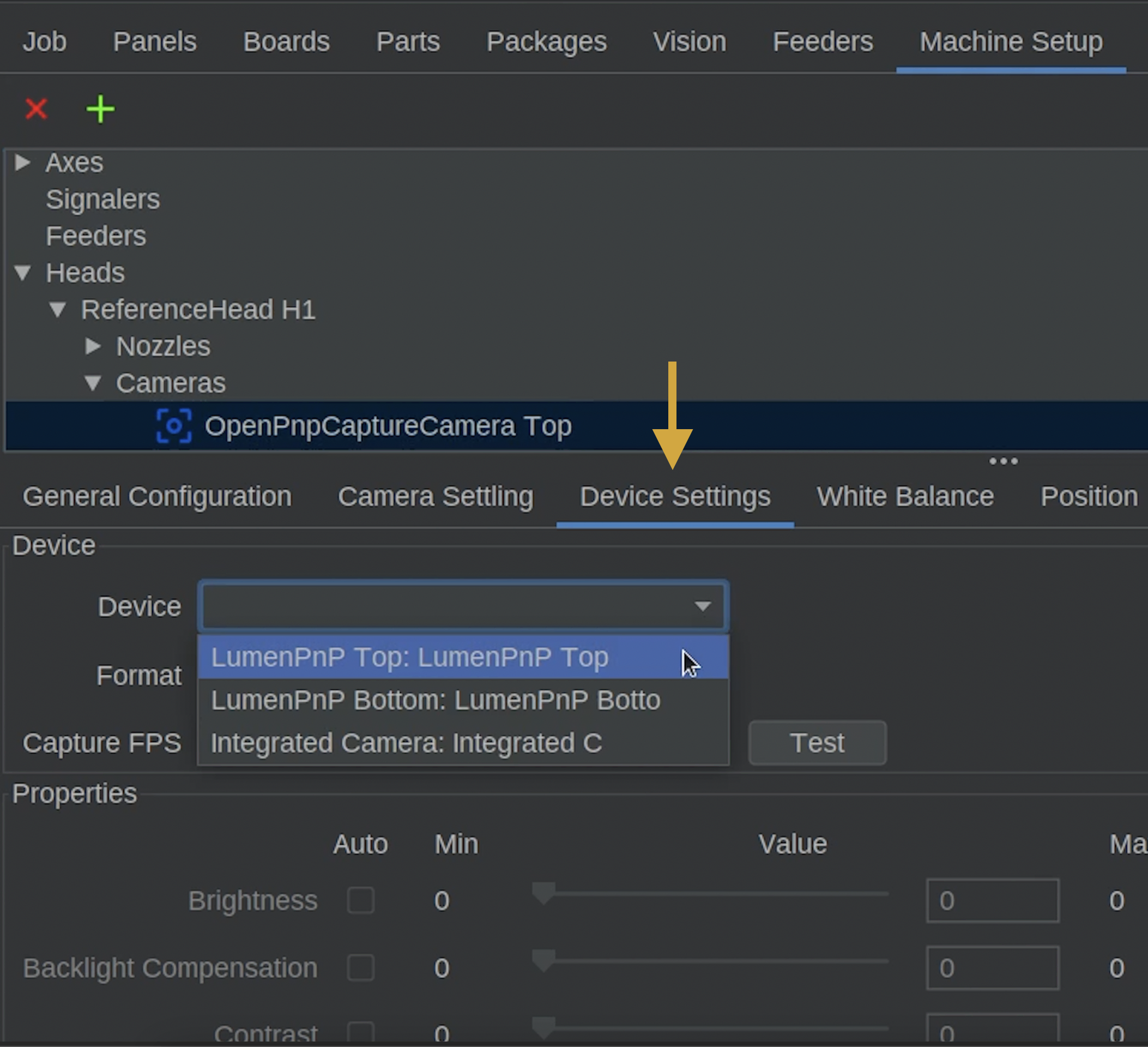
Select the Device Settings tab.
Step 3 of 14
Step 2: Select the Top Camera Device
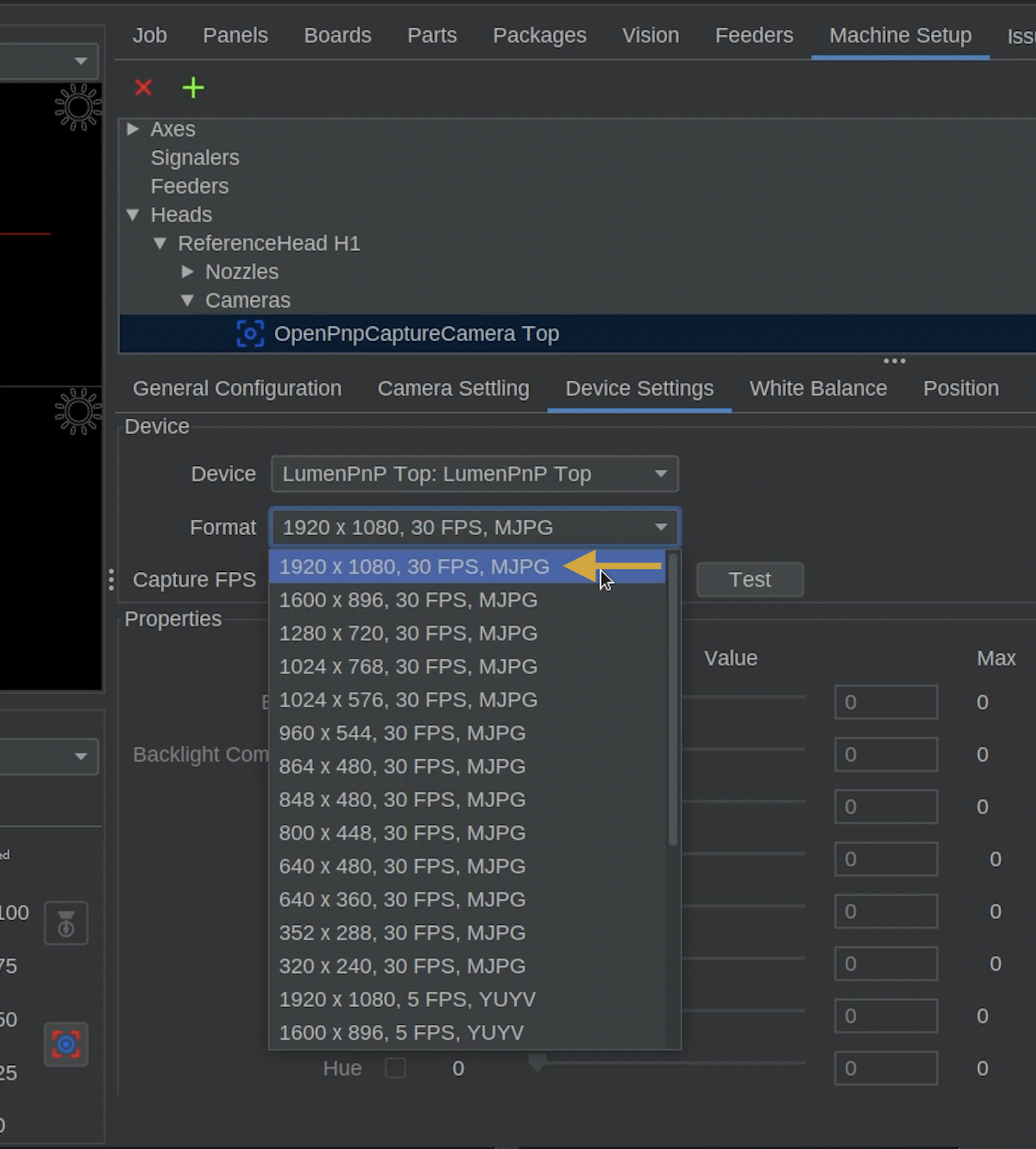
- Locate the Device dropdown.
- Select the LumenPnP top camera.
- Locate the Format dropdown.
- Select 1920 x 1080, 30 FPS, MJPEG or an equivalent 1920 x 1080 resolution, as an alternative option.
Step 4 of 14
Step 3: Initialize the Top Camera
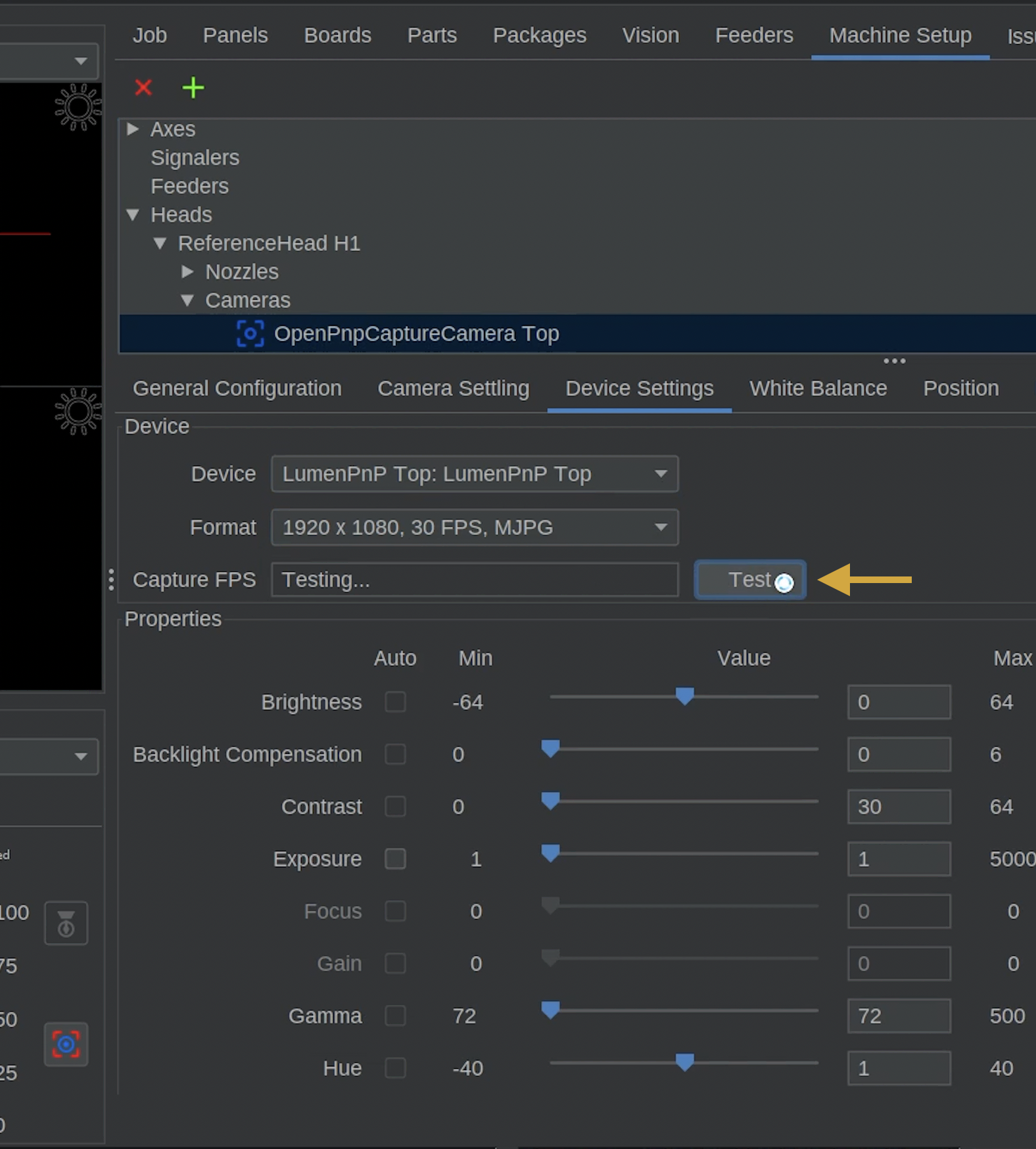
- Click Test next to the Capture FPS setting.
- Allow OpenPnP to initialize the camera.
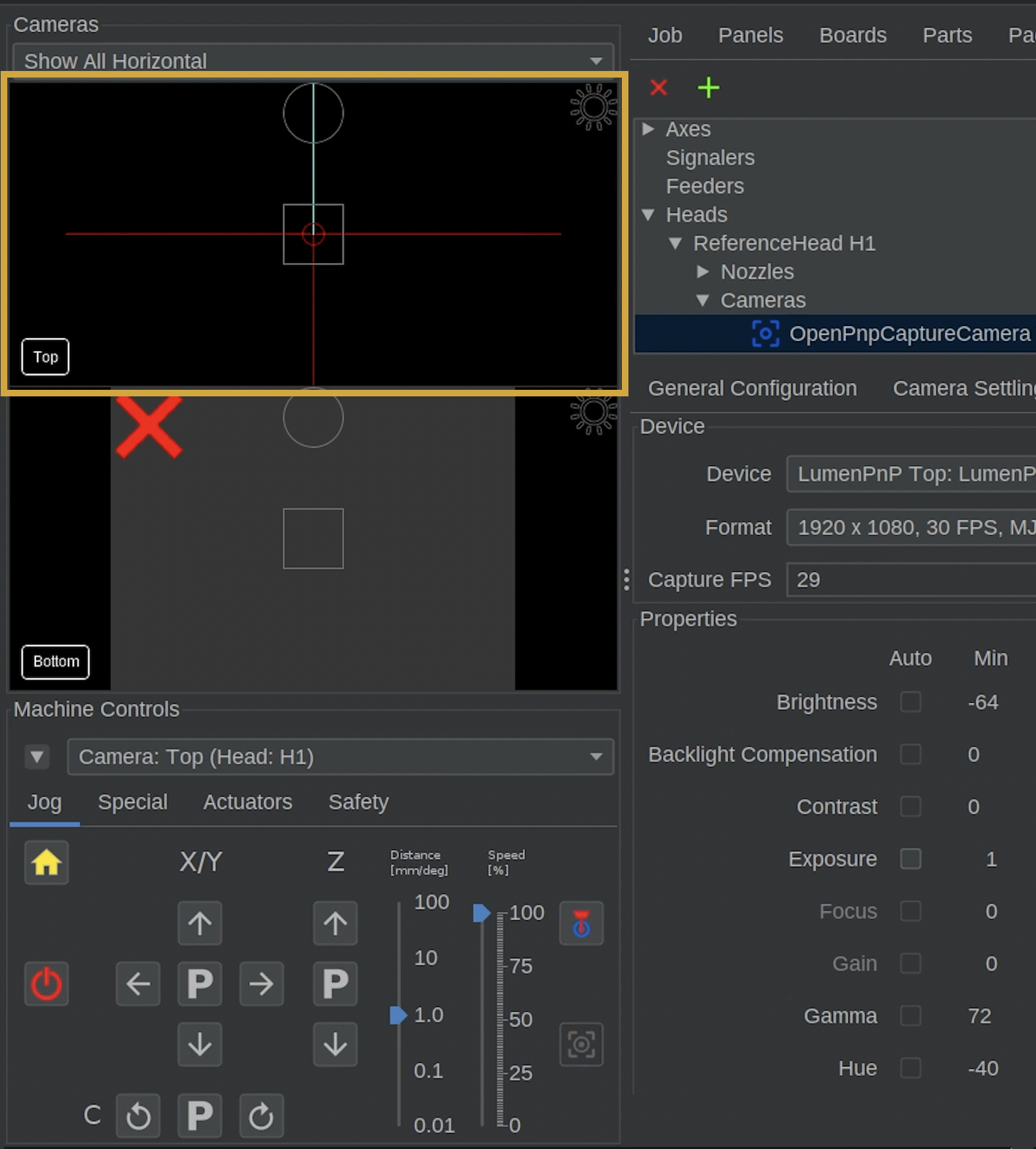

- Confirm that the top camera preview begins displaying a live image and removes the red X from the top camera feed.
- The image may initially appear dark or completely black. This is normal if the exposure settings haven't been adjusted yet.
Step 5 of 14
Step 4: Enable Manual Exposure
To ensure exposure settings are applied correctly, locate the camera properties
- Locate Exposure in the camera properties.
- Check the checkbox under the Auto column.
- Uncheck the same checkbox to disable automatic exposure.
- This switches the camera back to manual exposure mode and helps ensure the setting is applied correctly.
Step 6 of 14
Step 5: Configure Top Camera Properties
-
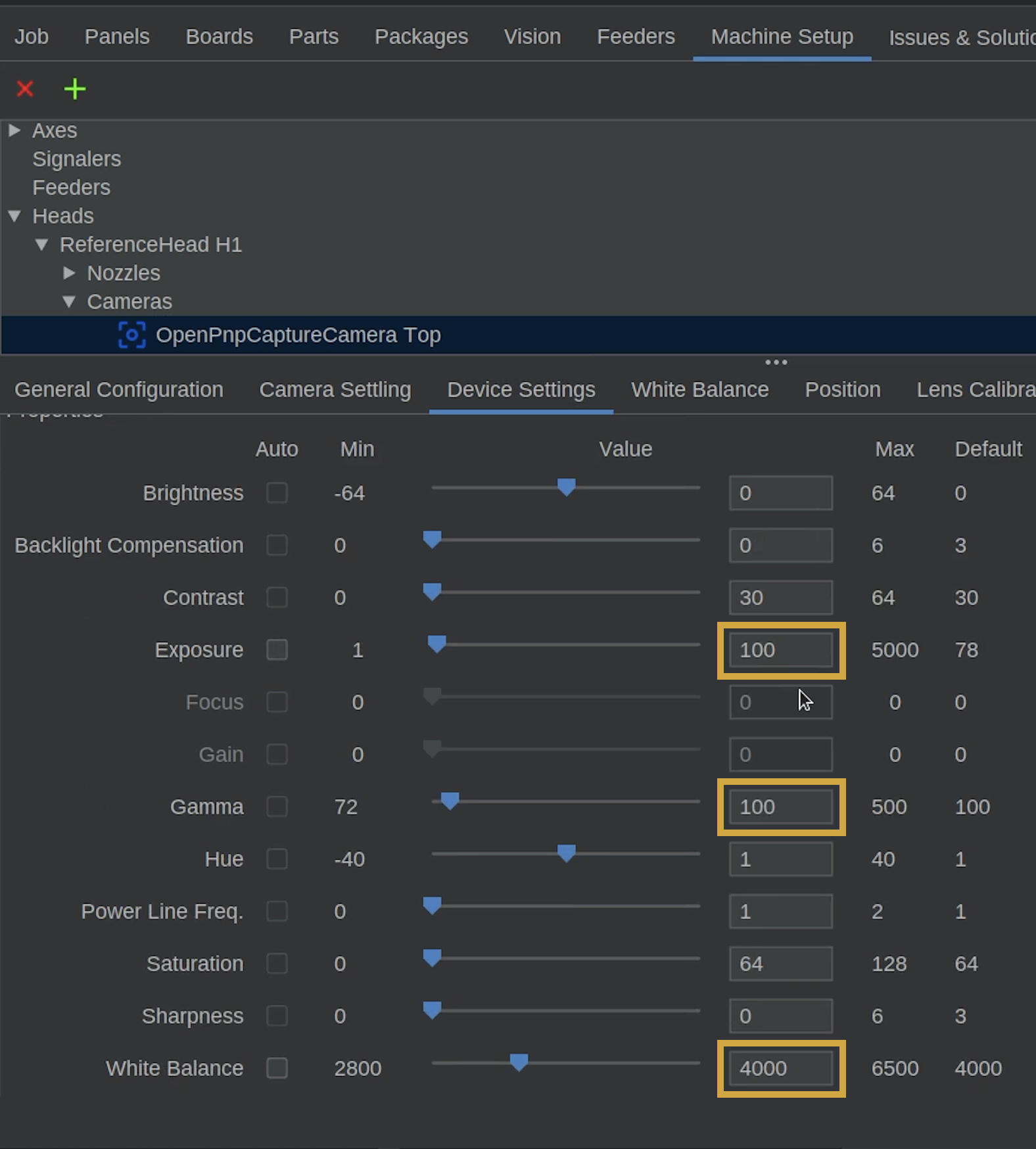
Update the following top camera settings to match the settings below. The exposure setting is a rough starting point. In a few steps, we'll turn on the camera lights and adjust the exposure as needed.
Camera Property Value Exposure 100 (to start) Gamma 100 White Balance 4000 Fine tuning the Exposure
In later steps, we'll fine-tune the camera exposure.
Step 7 of 14
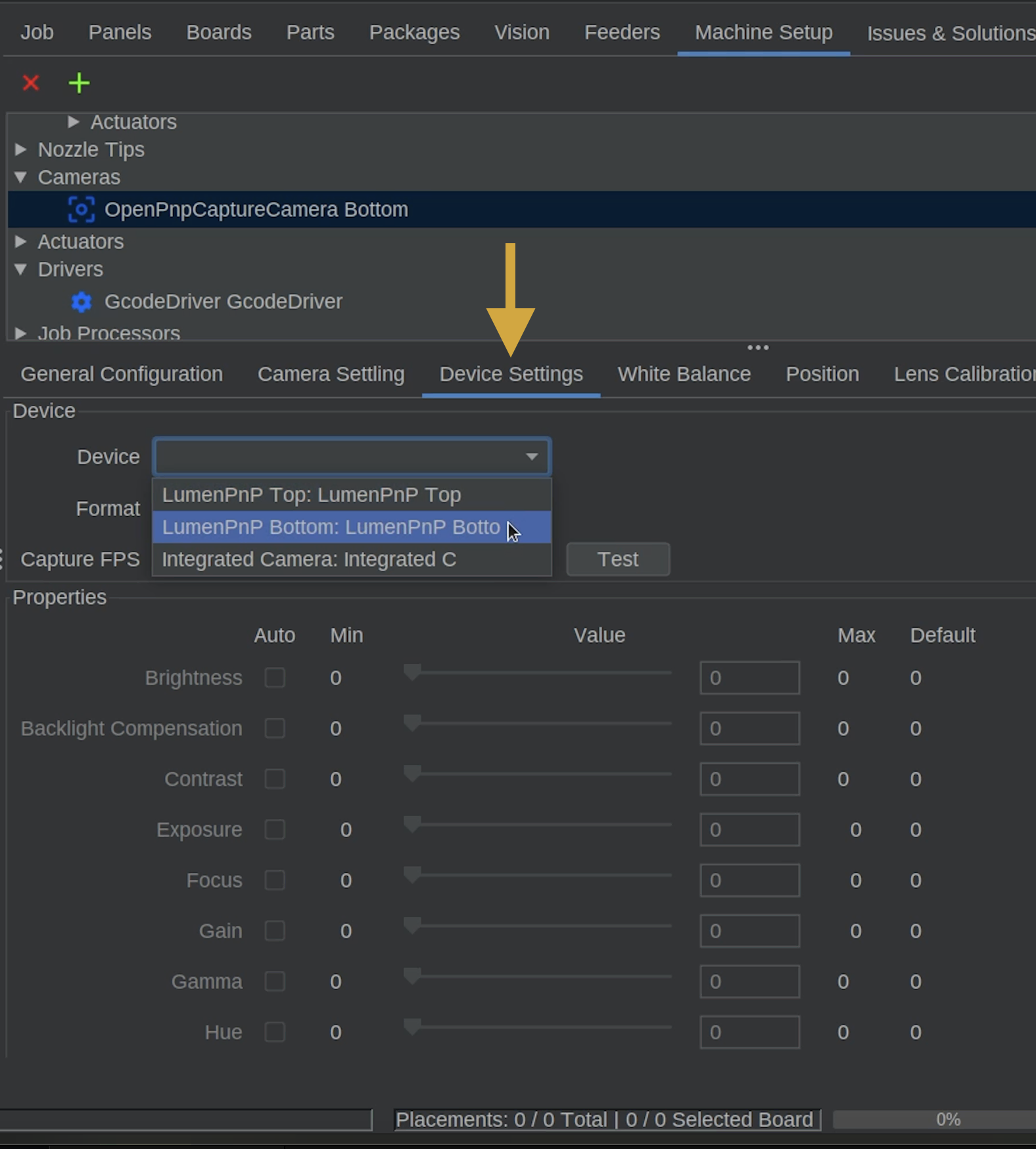
Step 6: Locate the Bottom Camera
- Open the Machine Setup tab.
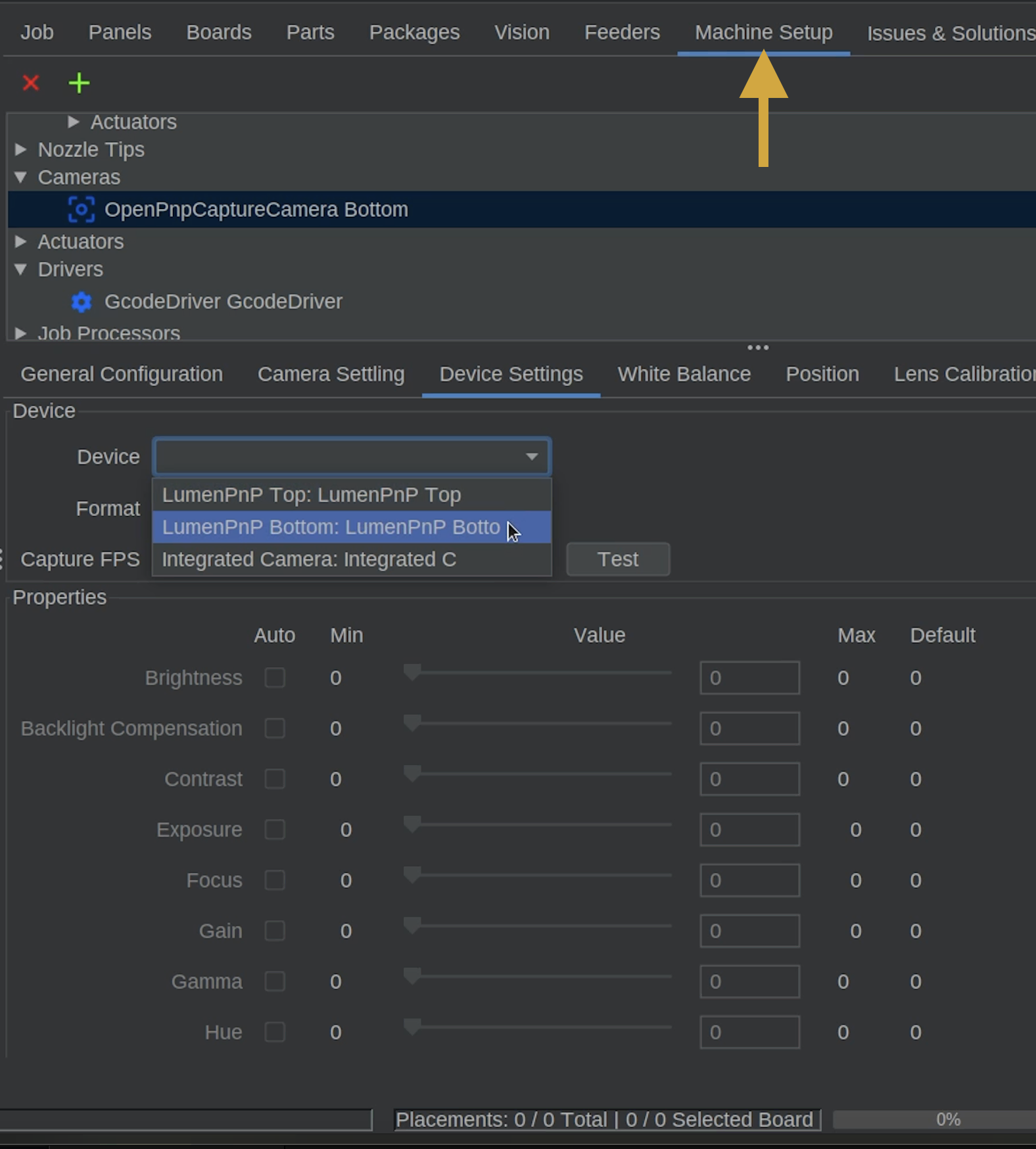
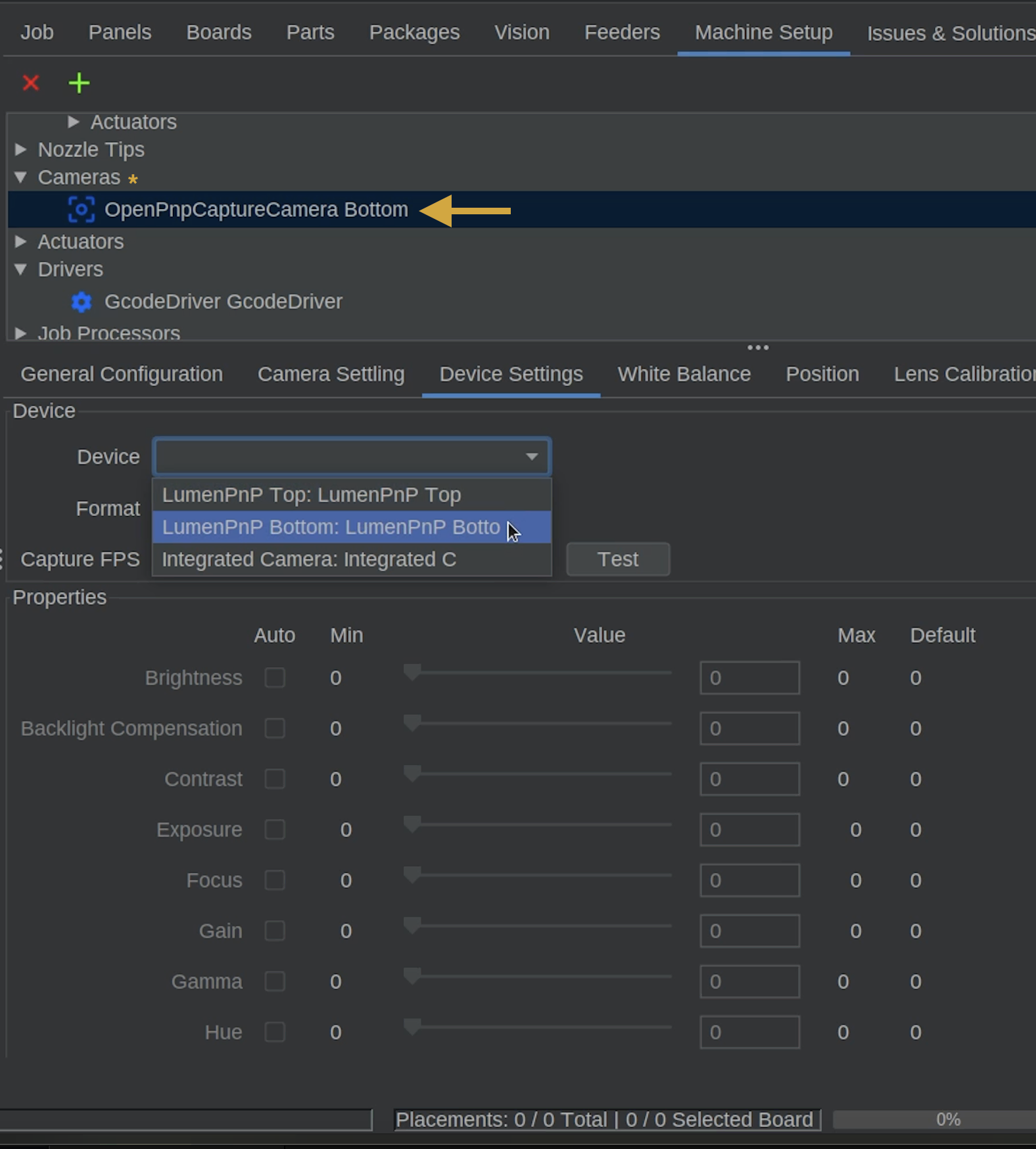
- Navigate to:
Cameras > OpenPnpCaptureCamera Bottom - Select the Device Settings tab.
Step 8 of 14
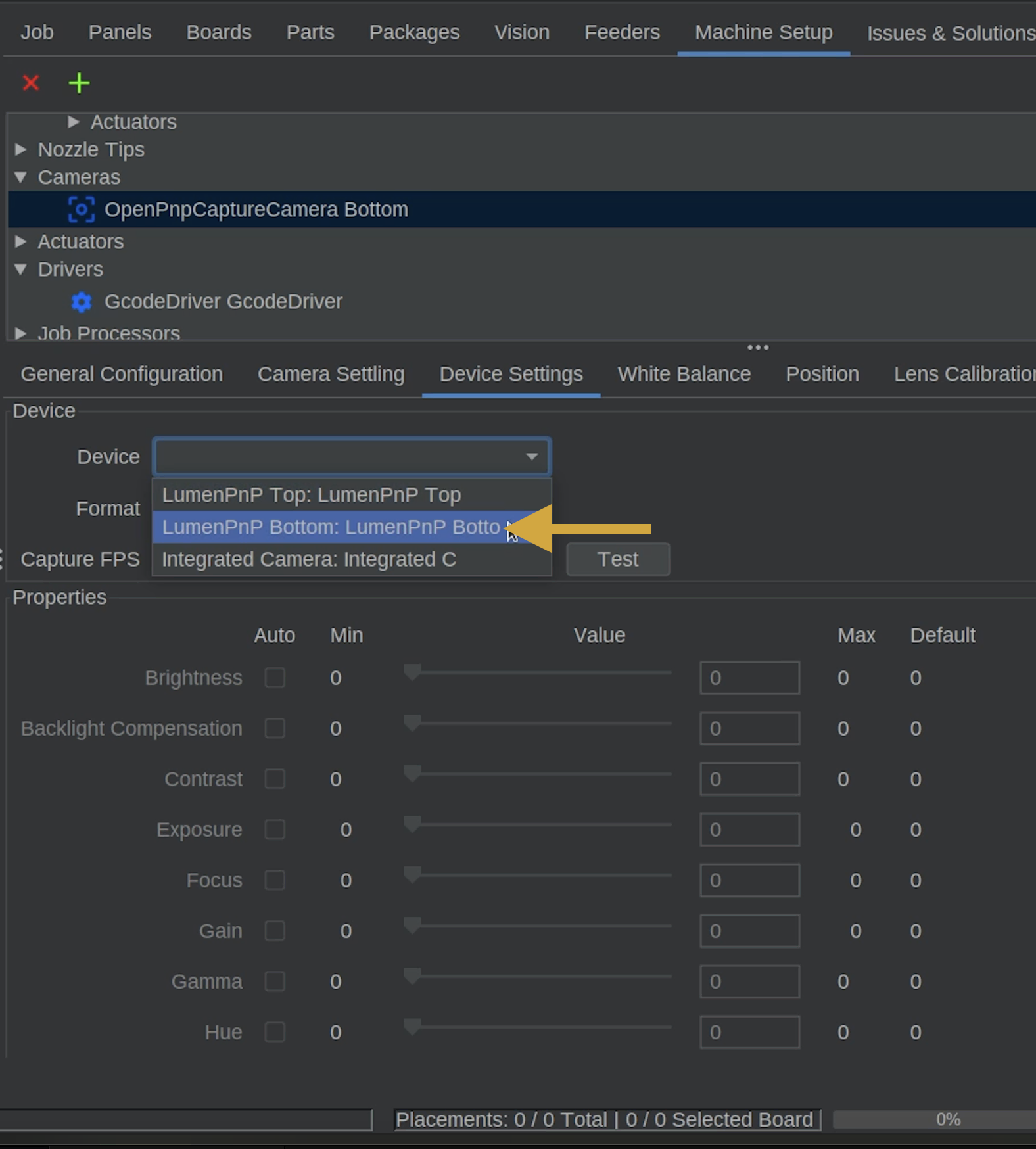
Step 7: Select the Bottom Camera Device
- Locate the Device dropdown.
- Select the LumenPnP Bottom camera.
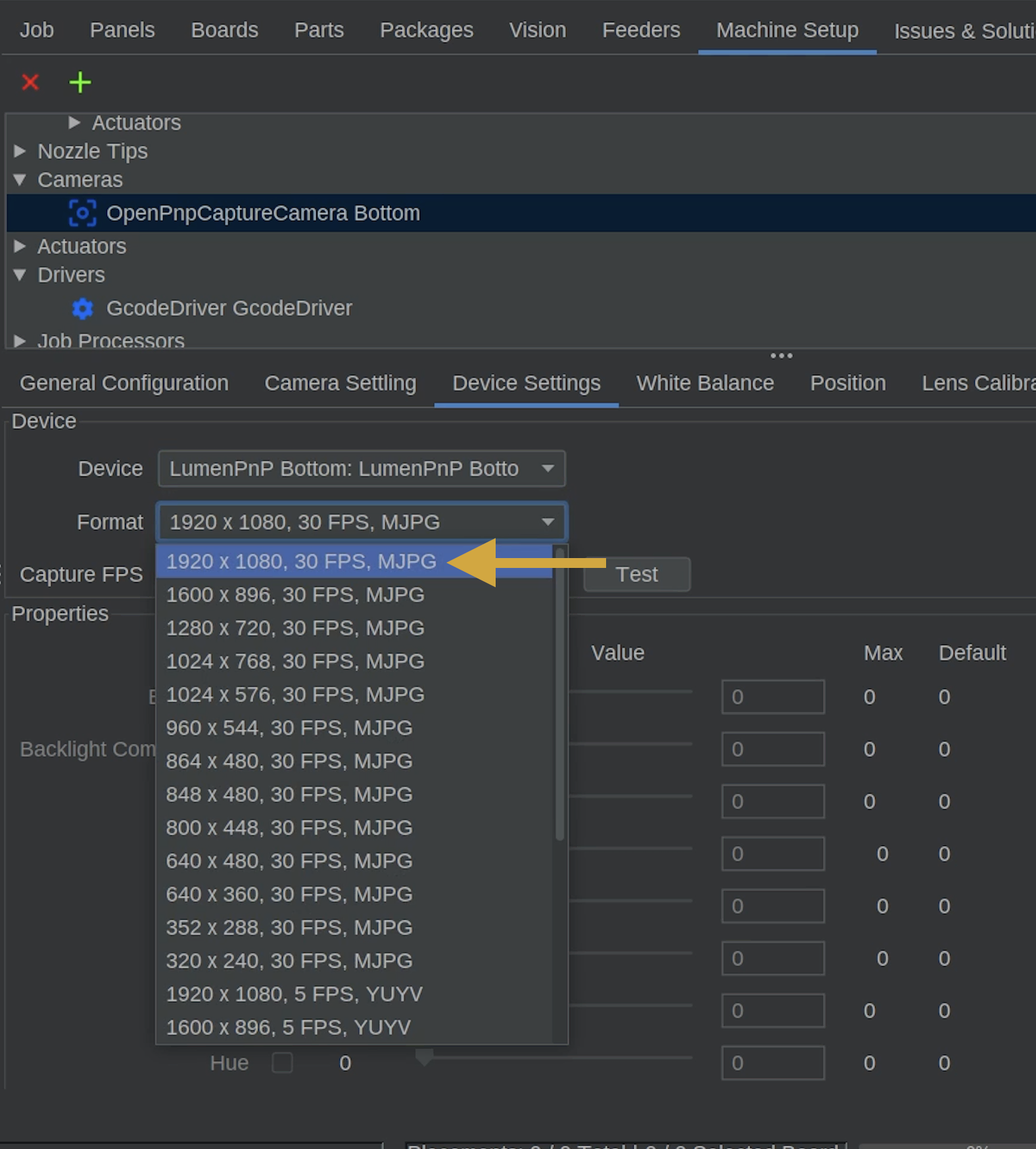
- Locate the Format dropdown.
- Select 1920 x 1080, 30 FPS, MJPEG or an equivalent 1920 x 1080 resolution, as an alternative option.
Step 9 of 14
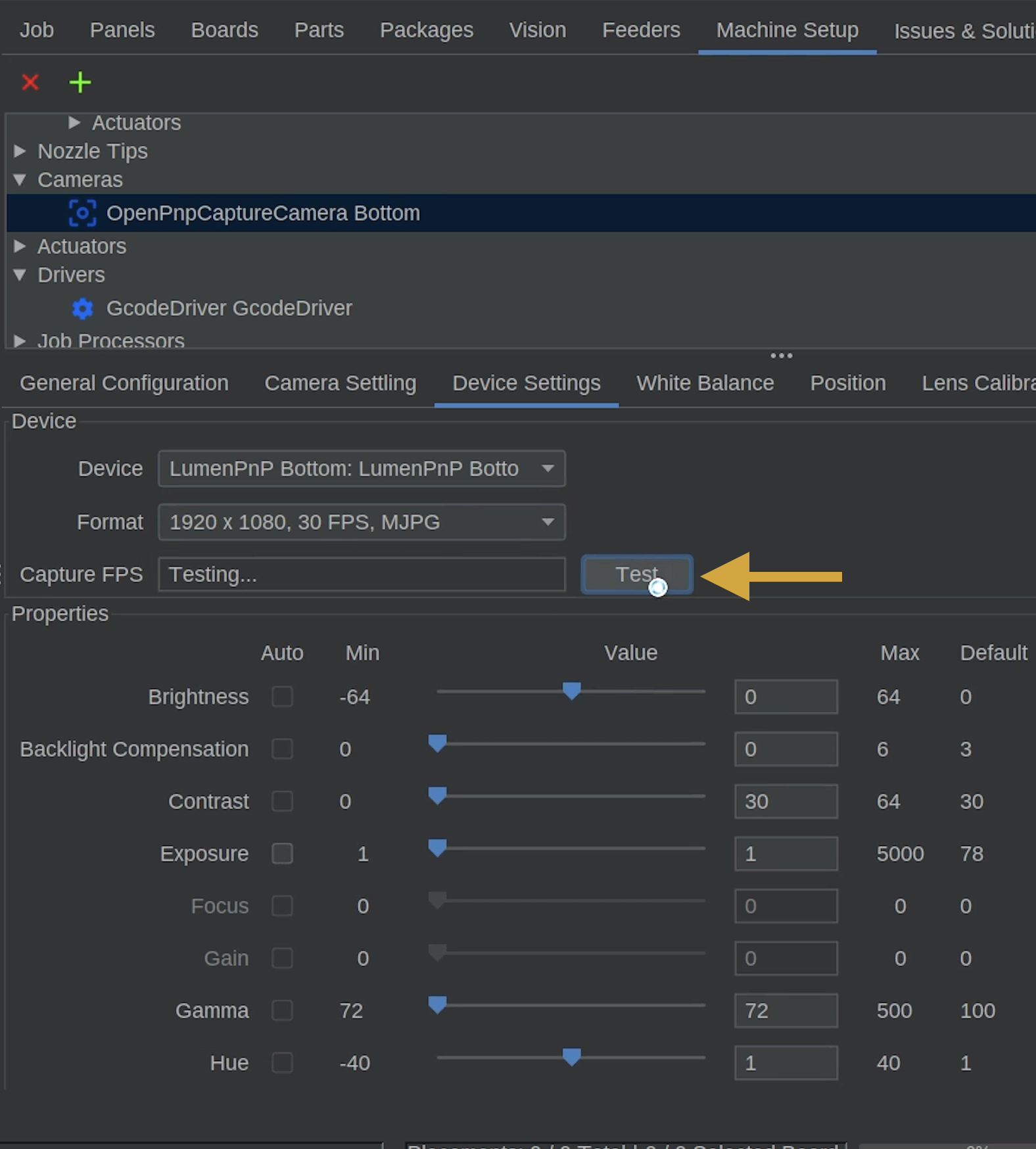
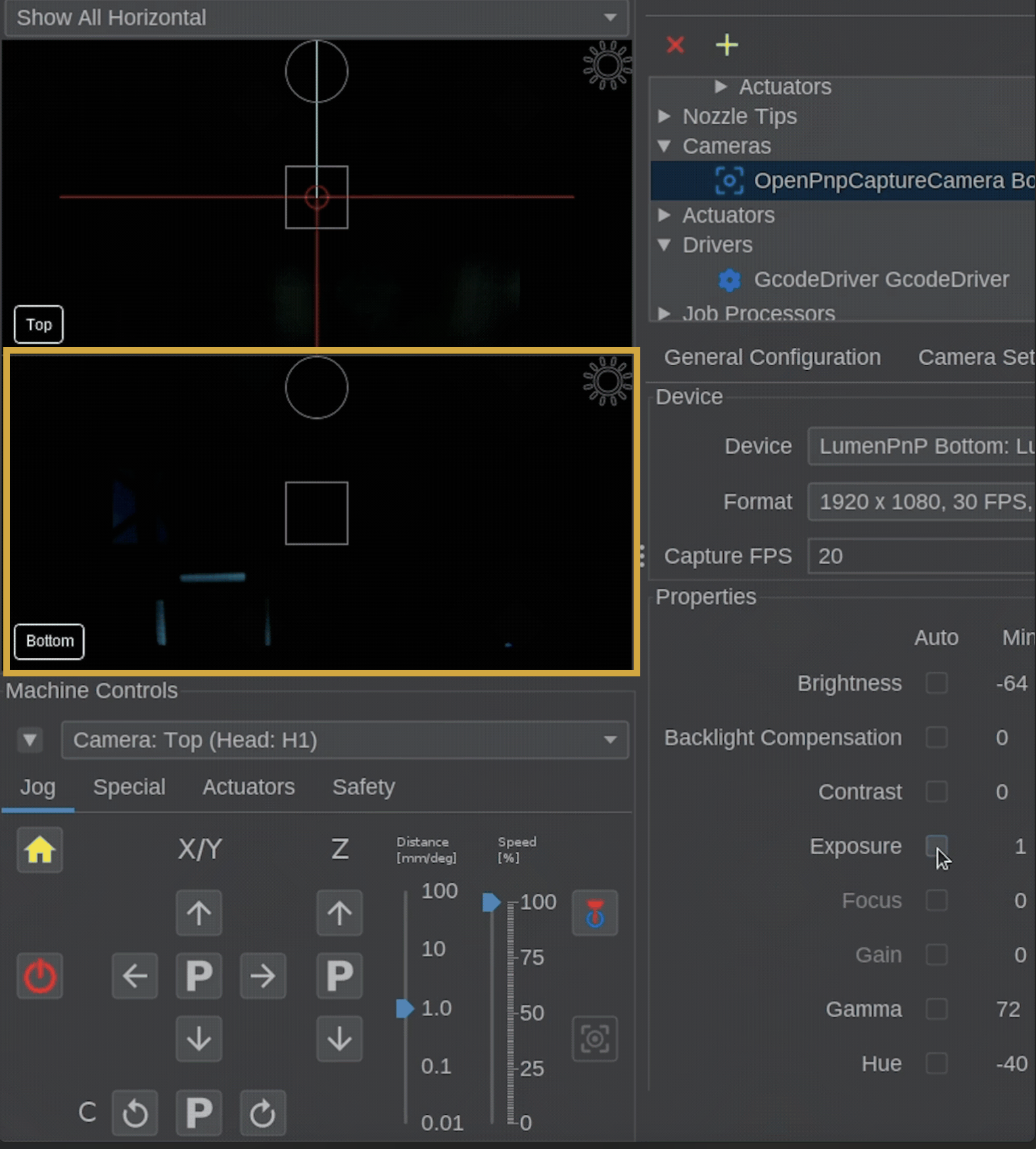
Step 8: Initialize the Bottom Camera
- Click Test next to the Capture FPS setting.
- Allow OpenPnP to initialize the camera.
- Confirm that the bottom camera preview begins displaying a live image and removes the red X from the bottom camera feed.
- The image may initially appear dark or completely black. This is normal if the exposure settings haven't been adjusted yet.
Step 10 of 14

Step 9: Enable Manual Exposure
To ensure exposure settings are applied correctly, locate the camera properties
- Locate Exposure in the camera properties.
- Check the checkbox under the Auto column.
- Uncheck the same checkbox to disable automatic exposure.
- This switches the camera back to manual exposure mode and helps ensure the setting is applied correctly.
Step 11 of 14
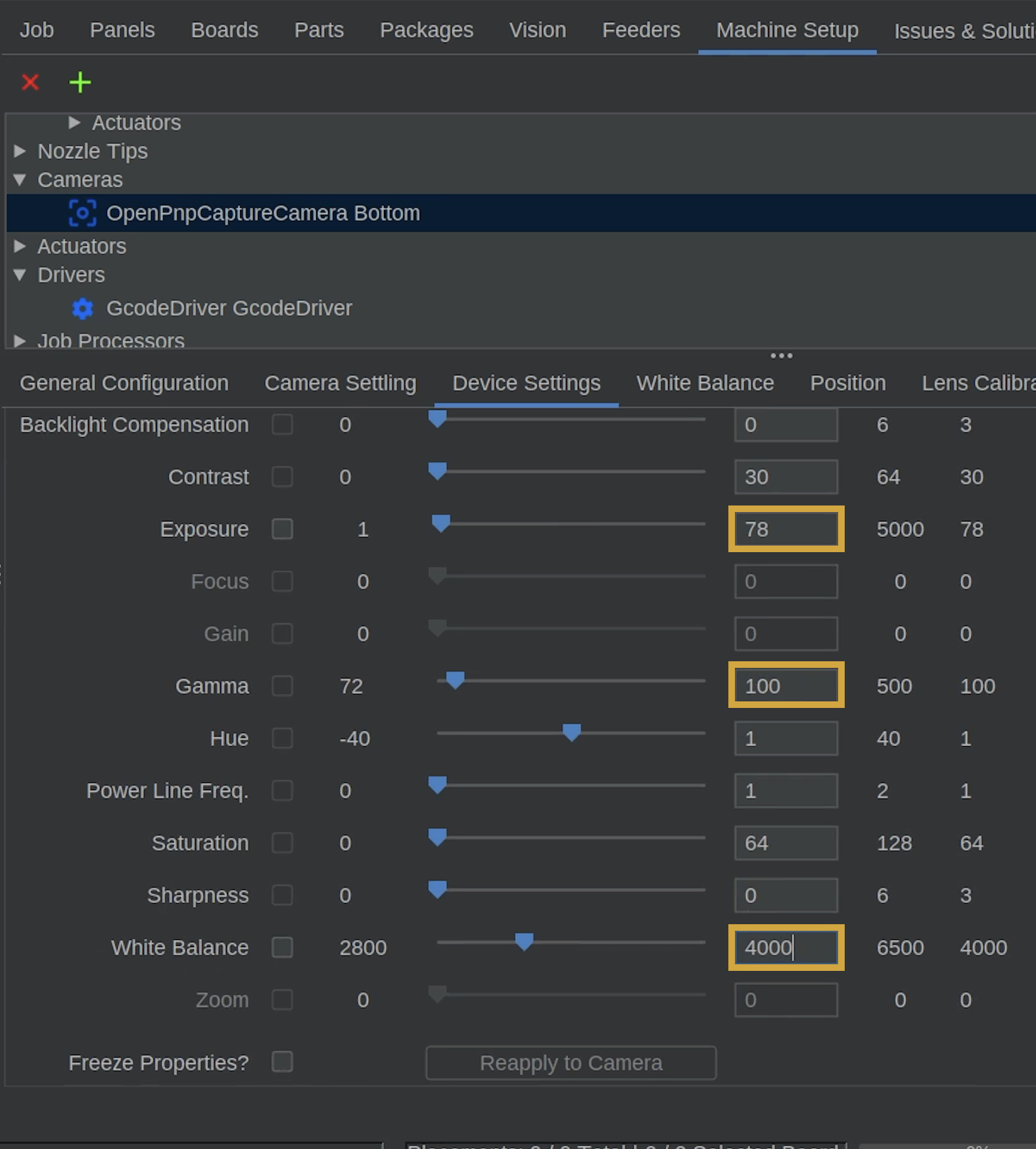
Step 10: Configure Bottom Camera Properties
-
Update the following bottom camera settings to match the settings below. The exposure setting is a rough starting point. We'll turn on the camera lights and adjust the exposure as needed, next.
Camera Property Value Exposure 78 (to start) Gamma 100 White Balance 4000 Fine tuning the Exposure
In the next steps, we'll fine-tune the camera exposure.
Step 12 of 14
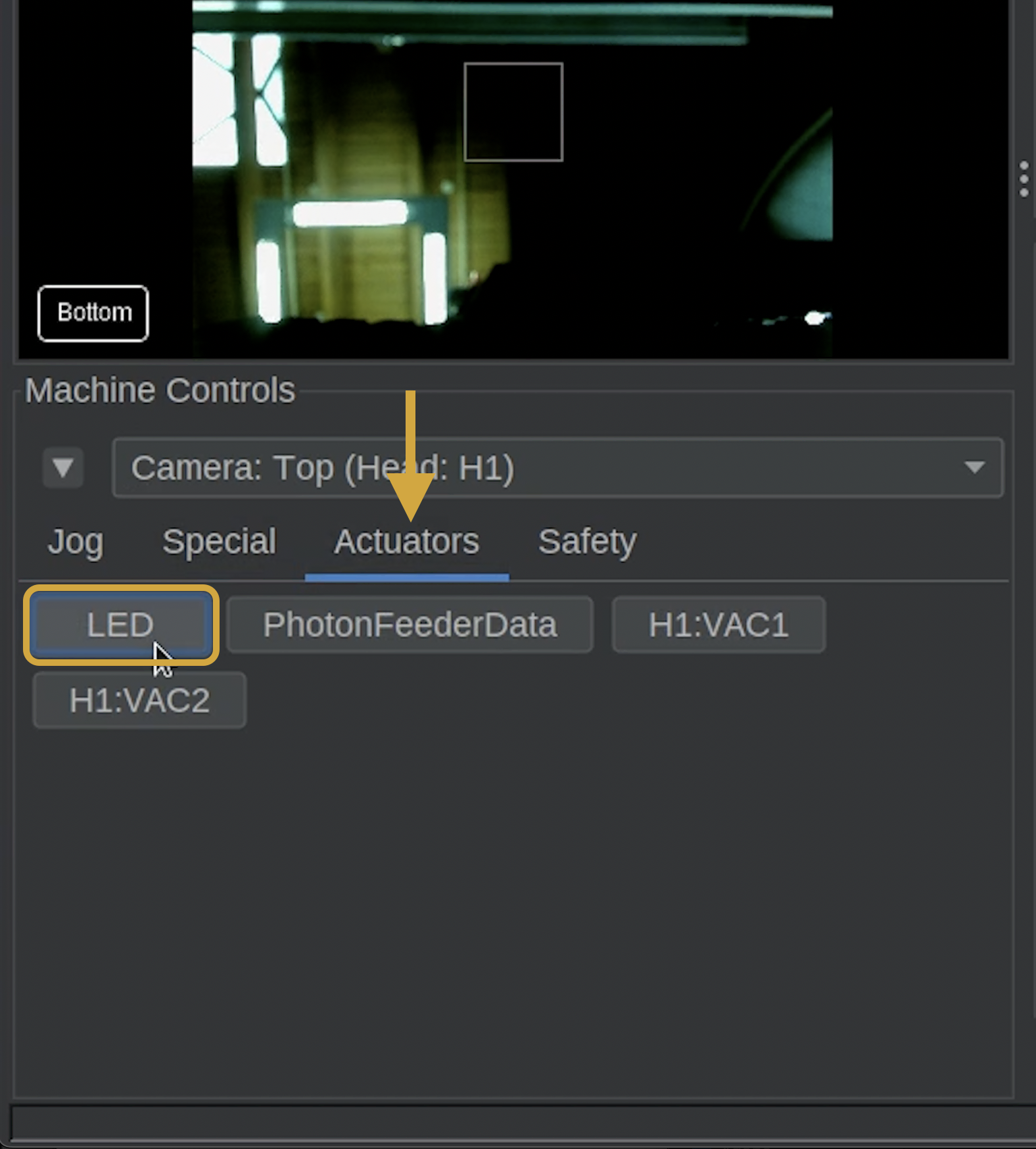
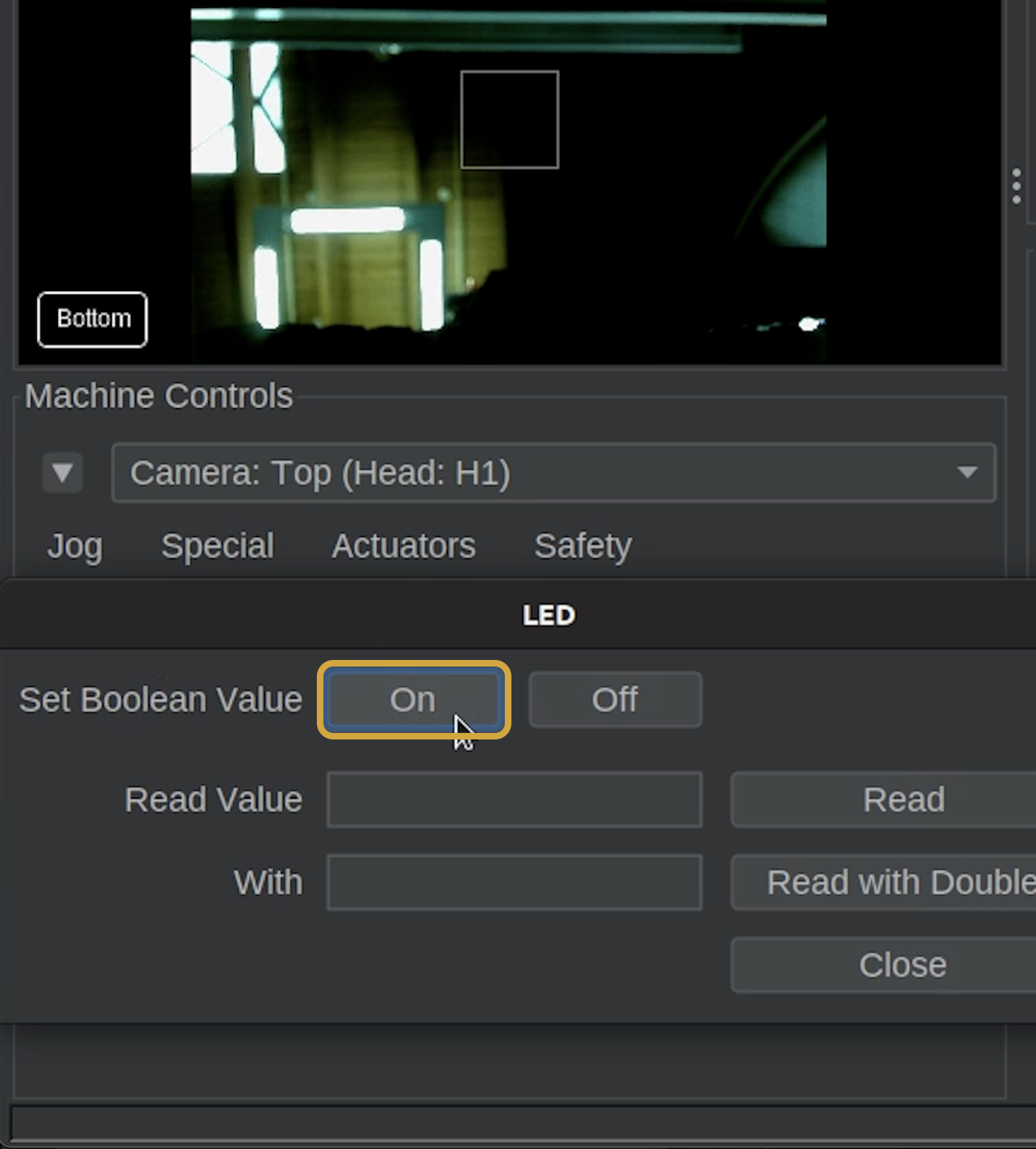
Step 11: Turn on Top & Bottom LEDs
- In Machine Controls, locate and select the Actuators tab and click on LED
- A small window will pop up. Set the Boolean Value to ON.
- This turn on the LEDs for the top and bottom camera.
- Then close the window, and switch back to the Jog tab when finished.
Step 13 of 14
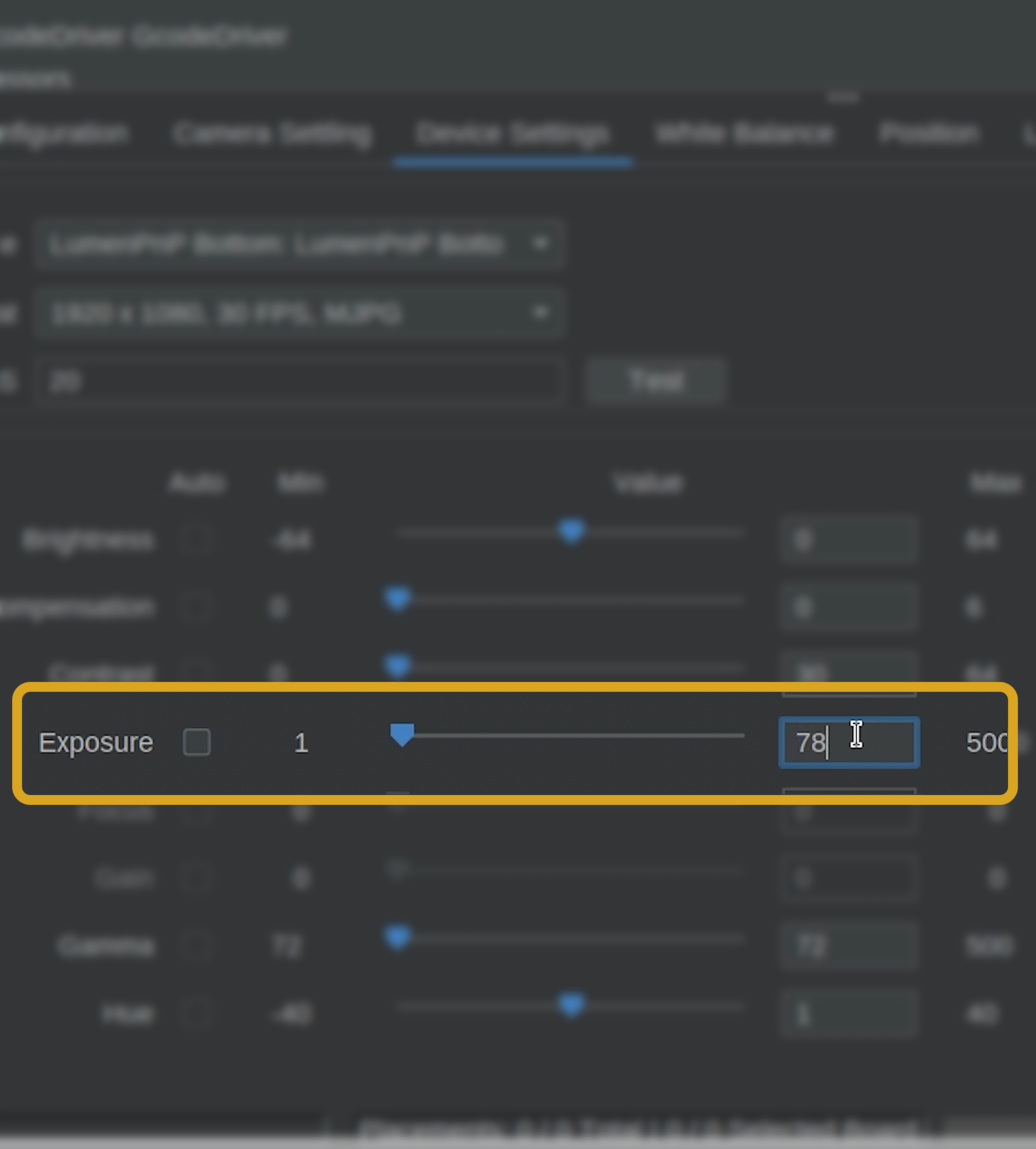
Step 12: Adjust Top & Bottom Camera Exposures
- The initial exposure settings were a starting point, and may be fine. Now that the top and bottom lights are on, adjust the Exposure for the top and bottom cameras until the camera produces a clear image without excessive brightness, if needed.
-
For now, use whatever stationary area is visible, or your hand, in the camera preview to use as reference while adjusting the exposure.
Fine tuning the Exposure
A good exposure should allow the camera to distinguish objects clearly without washing out important details. We can make more precise adjustments when positioning and calibrating the bottom camera, if needed.

Step 14 of 14
Next Steps
Cameras Configured
Both cameras are now connected and ready for the next stage of setup.
Next, we'll initiate the homing sequence.