Use an adaptive camera settling method
Step 1 of 3
Step 1: Configure Top Camera Settling
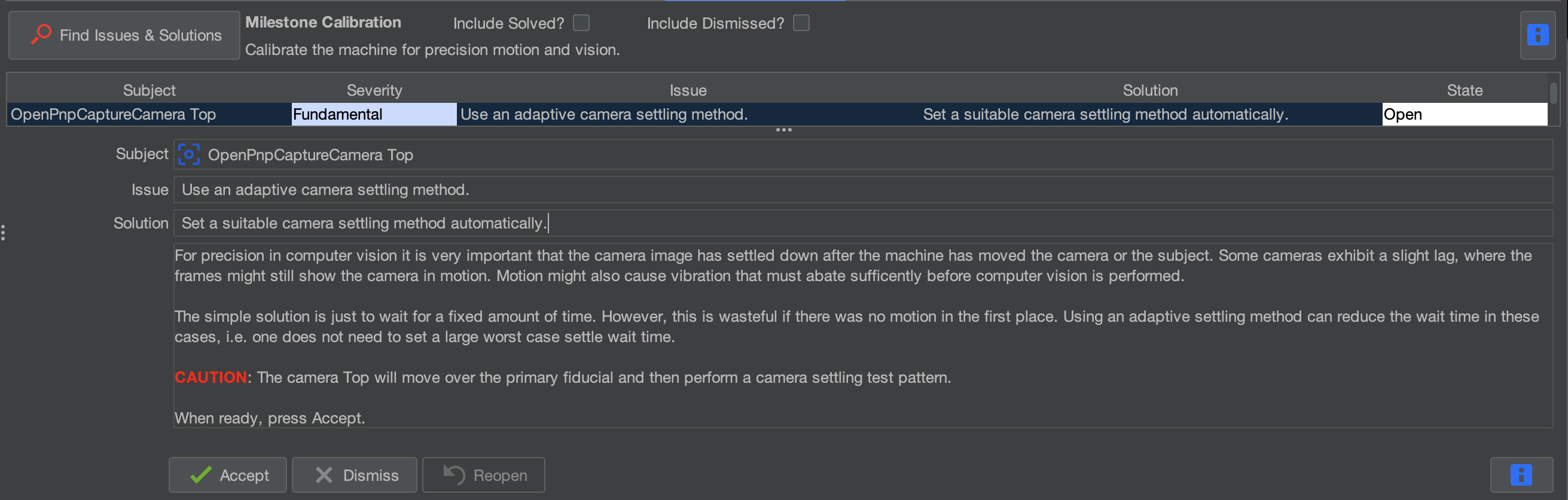
Camera settling allows OpenPnP to wait for the camera image to stabilize before capturing it. Rather than leaving it at a set amount, we can optimize the settle time to make sure we are not wasting time.
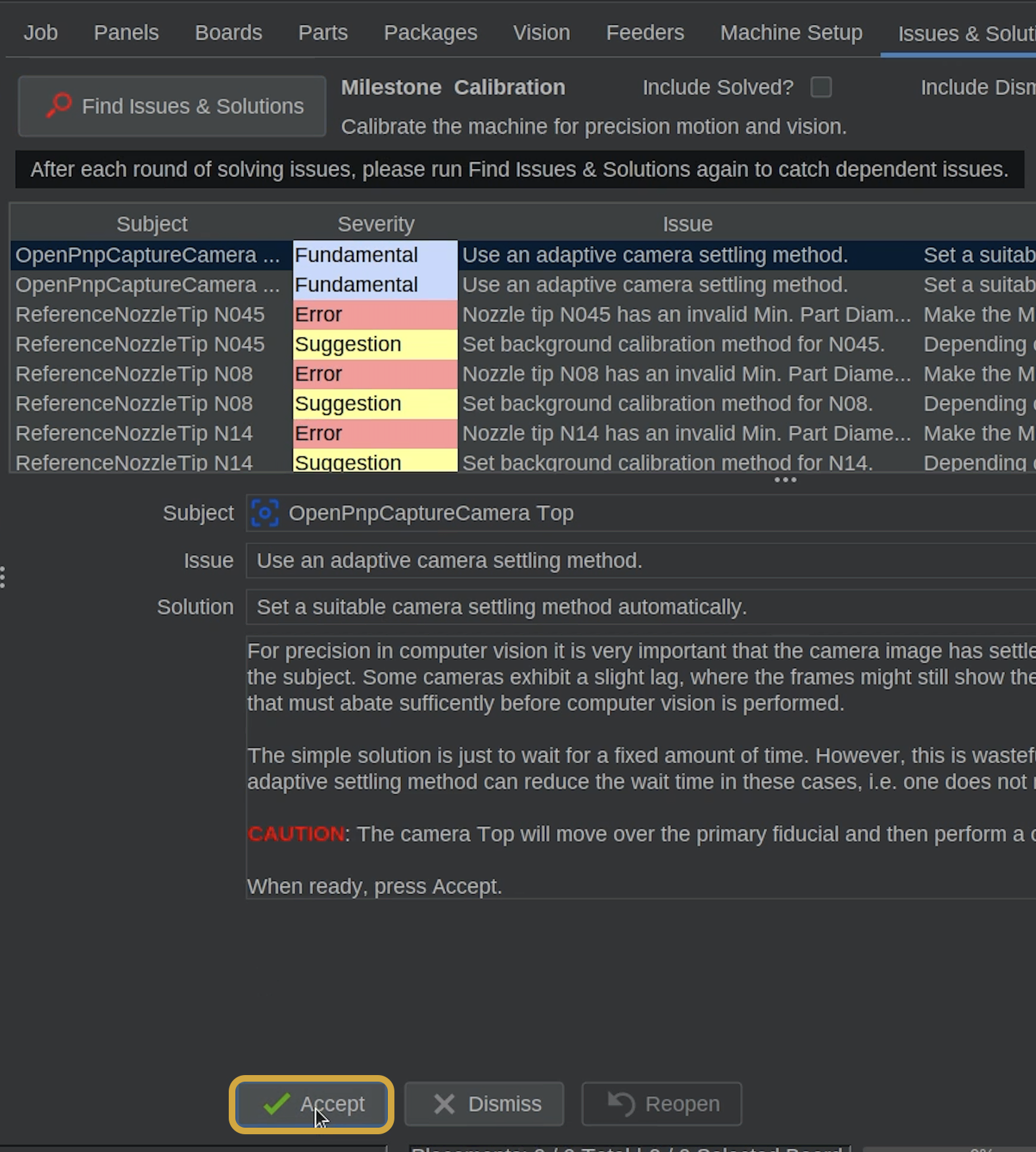
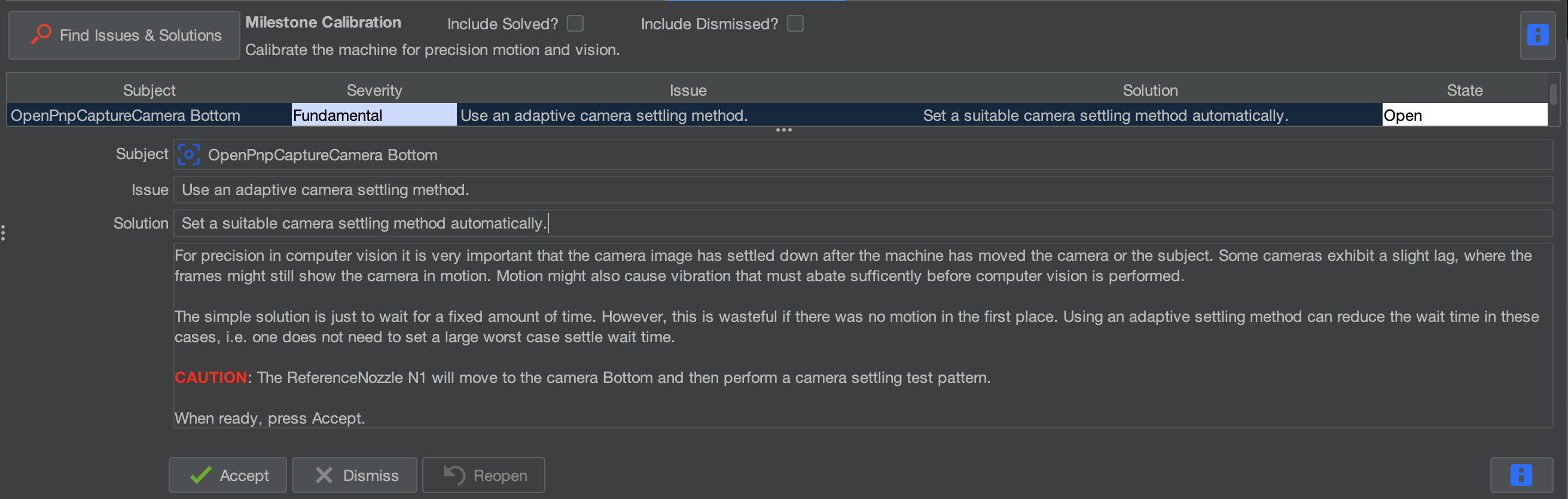
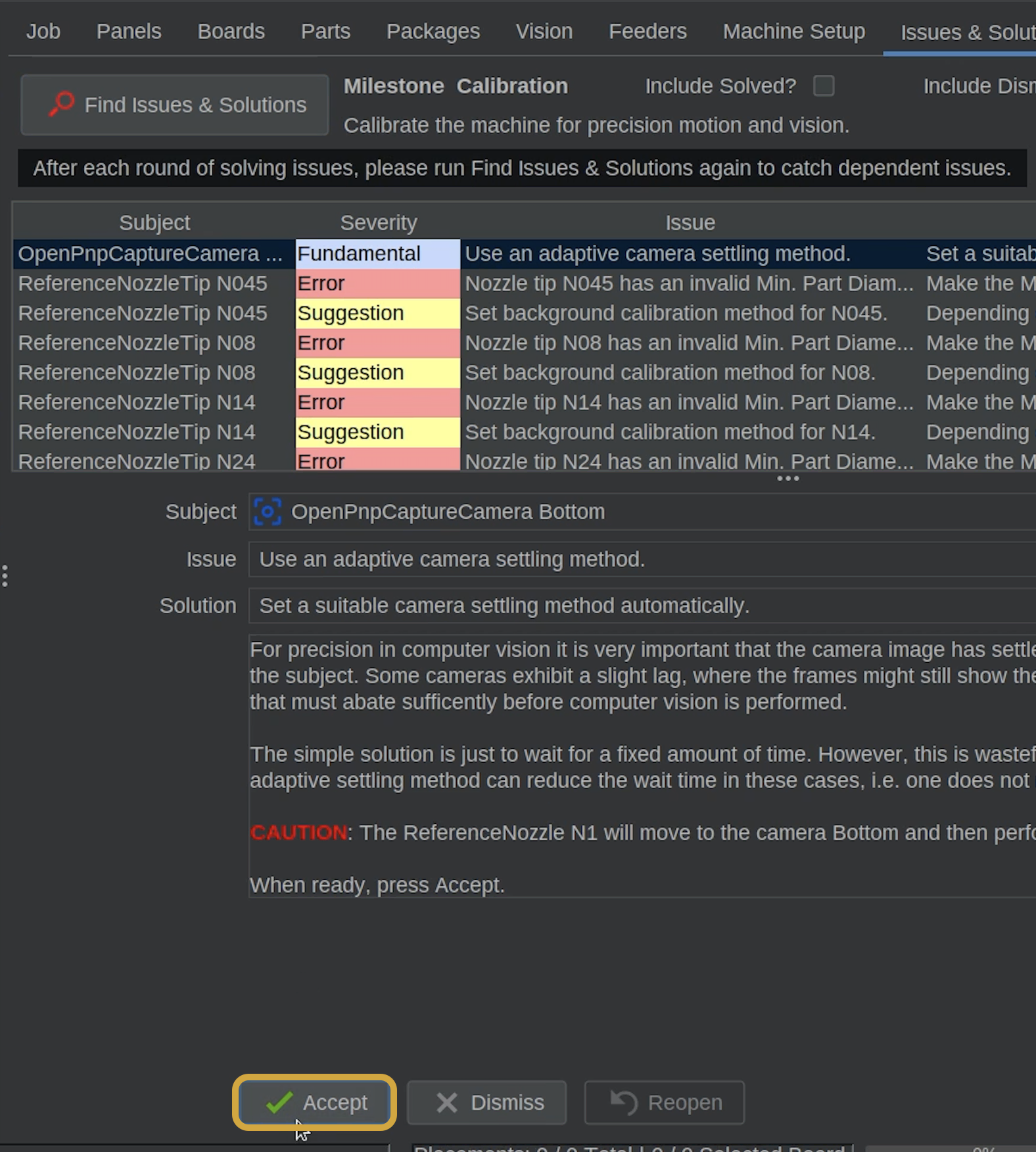
- After clicking Find Issues & Solutions in the previous step, locate and select Use an adaptive camera settling method, identified for the Top Camera.
- Click Accept to automatically configure the top camera's settling method.
- OpenPnP will perform the configuration automatically. This usually takes only a few seconds.
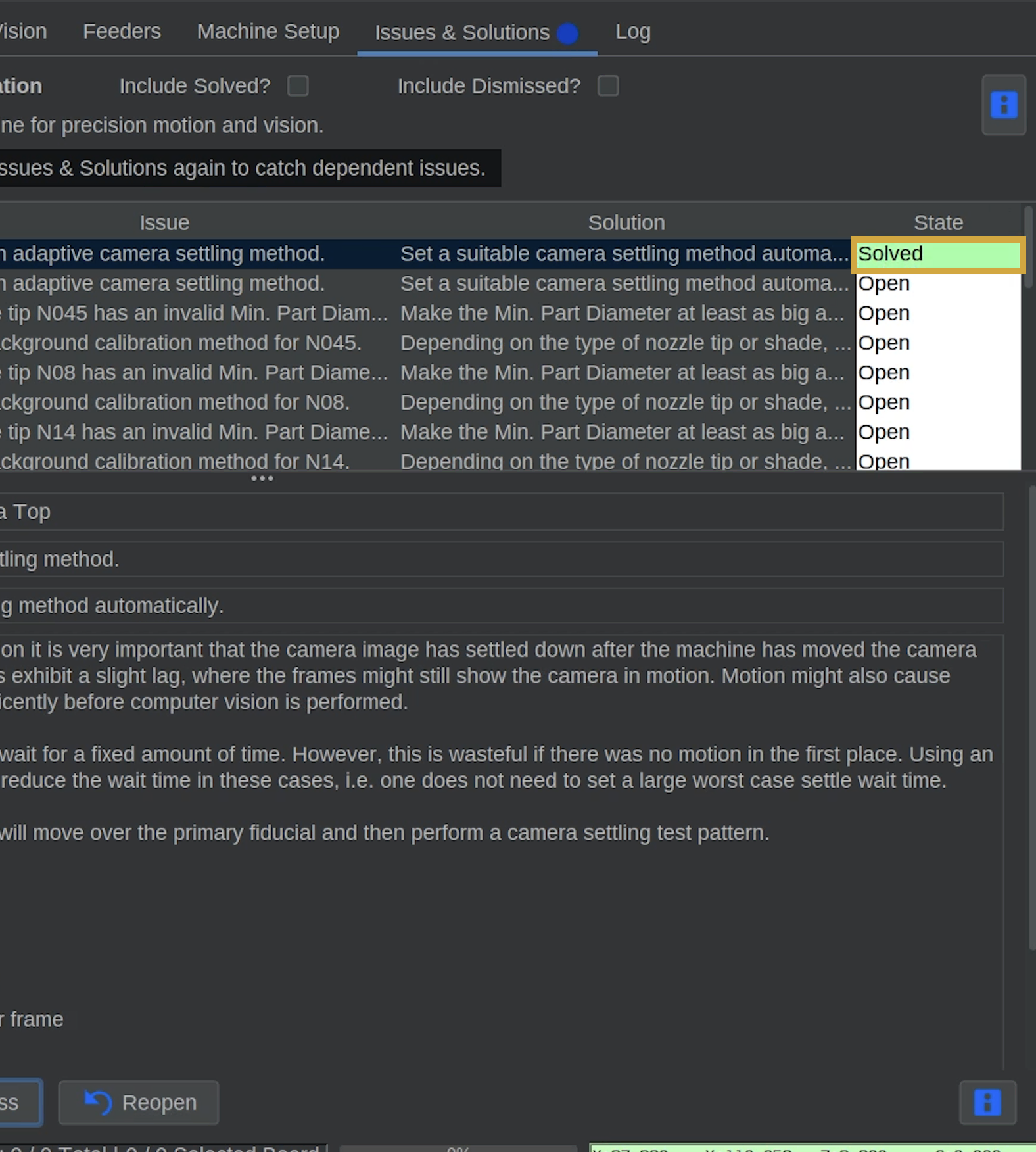
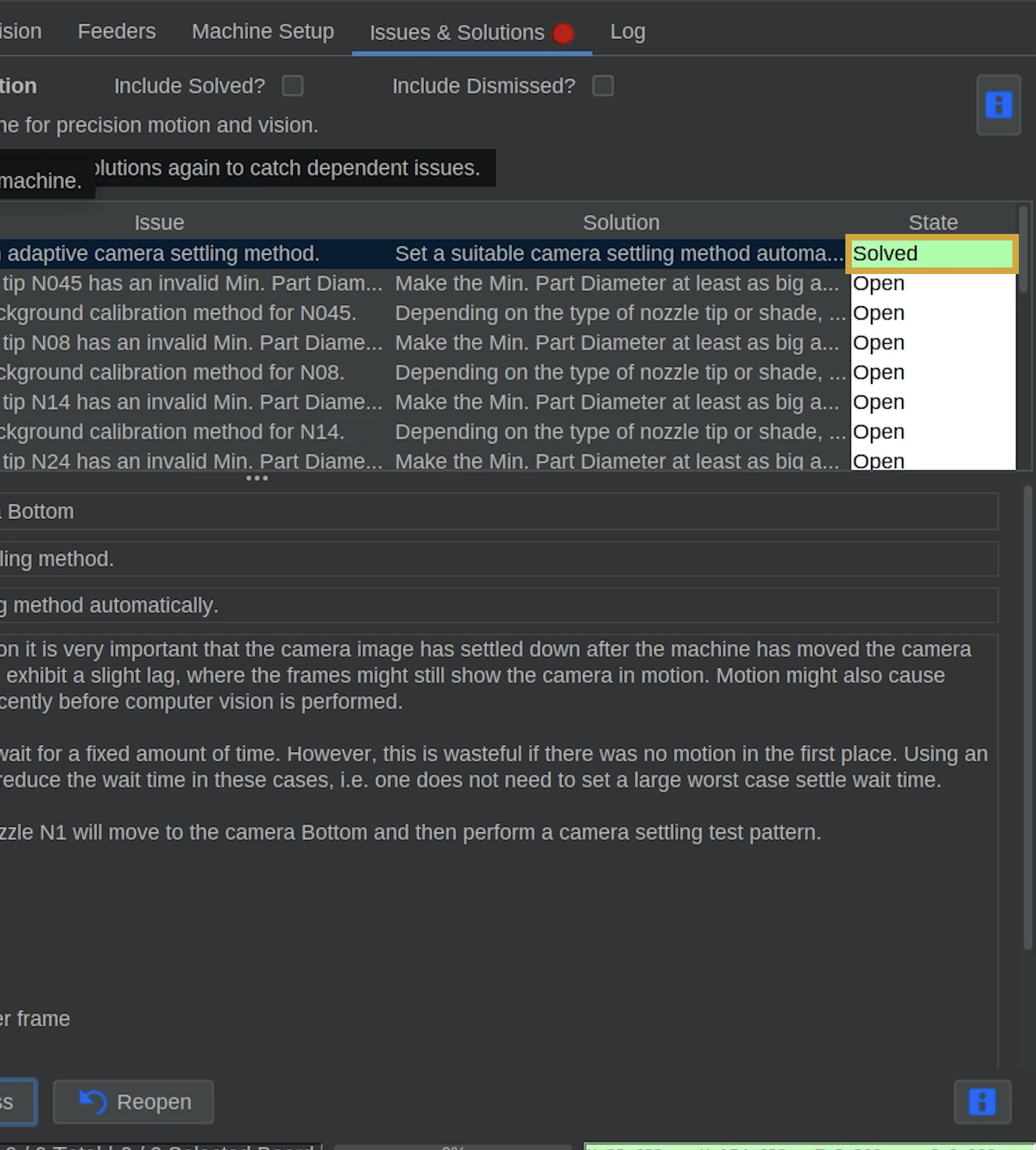
- Once the calibration finishes, confirm that Use an adaptive camera settling method (top) is marked Solved.
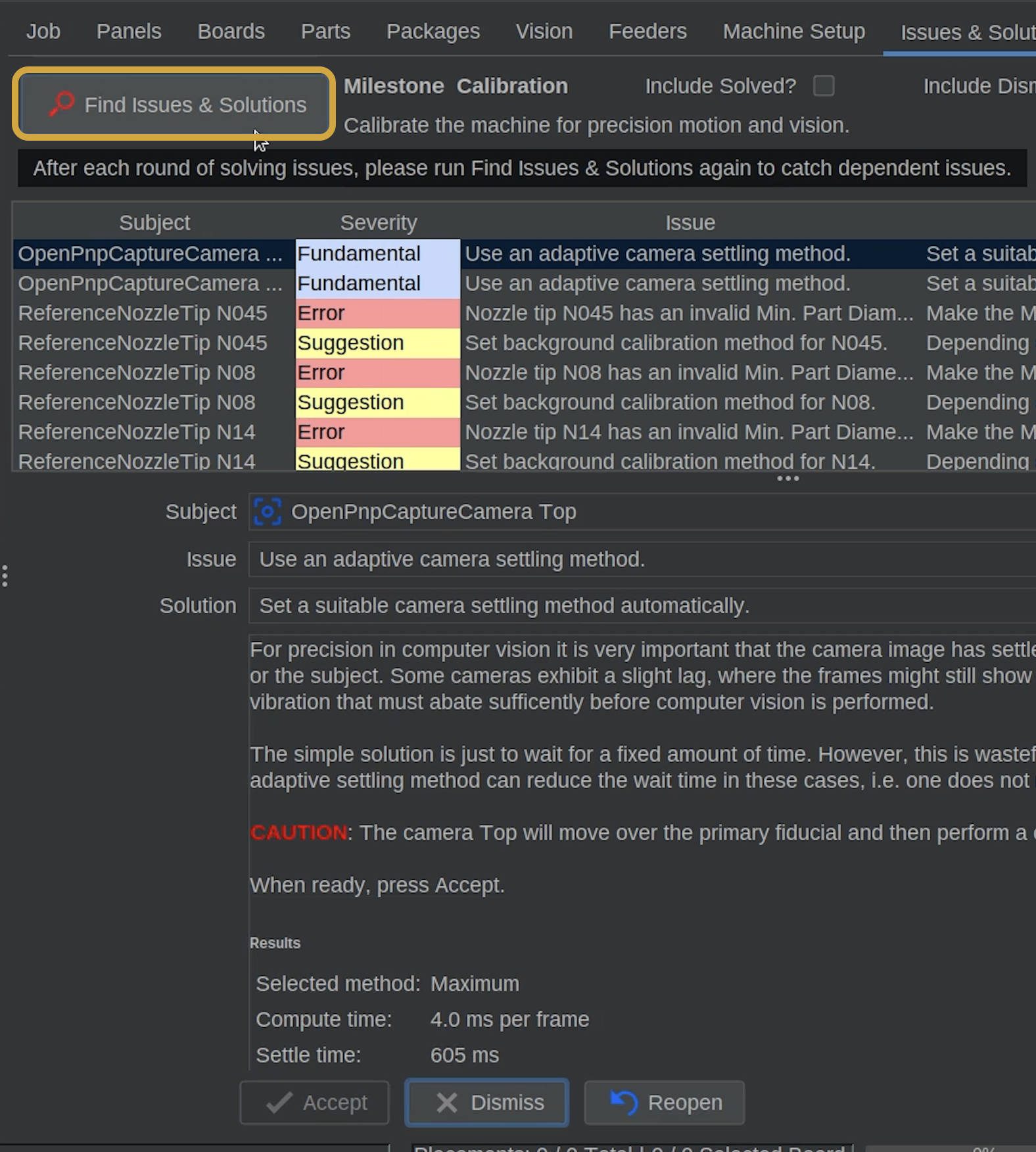
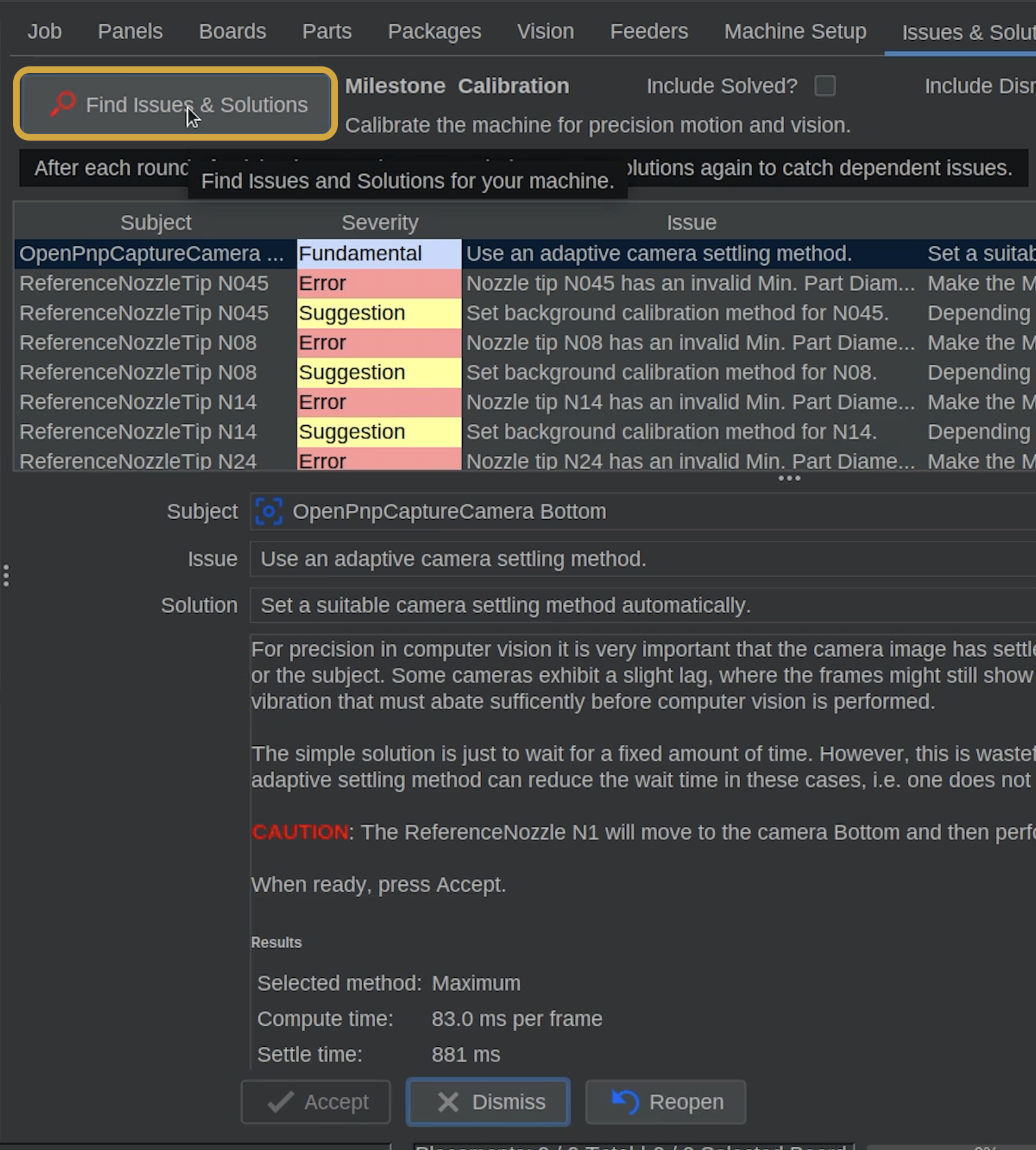
- Click Find Issues & Solutions to refresh the task list.
Step 2 of 3
Step 2: Configure Bottom Camera Settling
- Once the top camera task is marked Solved, click Find Issues & Solutions to refresh the list.
- Locate and select the next Use an adaptive camera settling method task, identified for the Bottom Camera.
- Click Accept to automatically configure the bottom camera's settling method.
- Allow OpenPnP to complete the process, which should only take a few seconds.
- Once the calibration finishes, confirm that Use an adaptive camera settling method (top) is marked Solved.
- Click Find Issues & Solutions to refresh the task list.

Step 3 of 3
Step 3: Issues & Solutions Essential Tasks Complete
Camera Settling Configured
Both cameras now have their settling methods configured.
The next step is setting your homing method and is very important.
- Continue to set up your homing method and nozzle runout.