Determine the up-looking camera Bottom position & initial calibration
Step 1 of 10
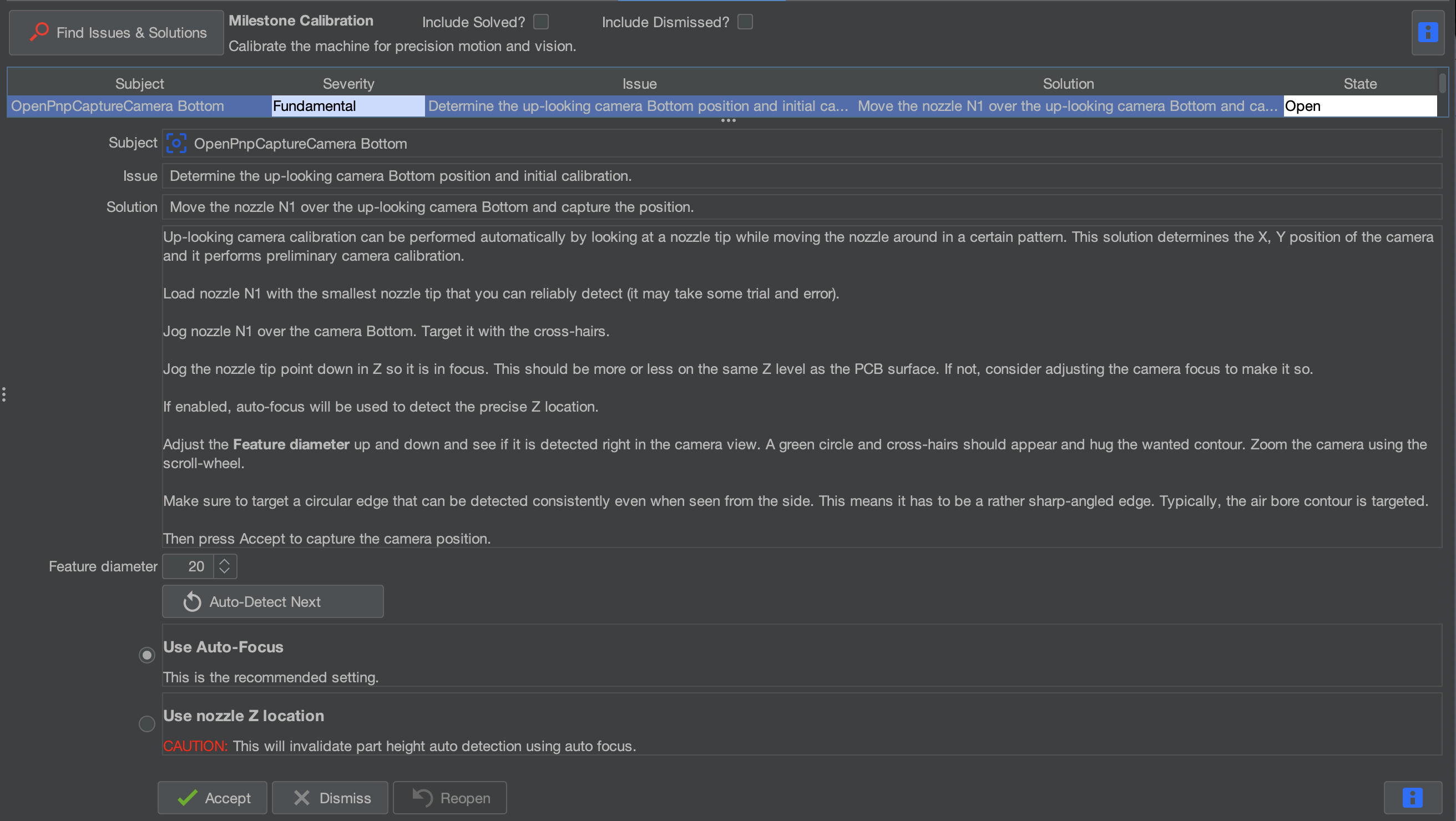
Step 1: Select the Determine the up-looking camera Bottom position and initial calibration Task
For this task, we'll establish the bottom camera's position by using it to detect the N08 nozzle tip installed on N1 (left nozzle).
- After clicking Find Issues & Solutions in the previous step, locate and select Determine the up-looking camera Bottom position and initial calibration.
Step 2 of 10
Step 2: Choose the Correct Z-Height Method
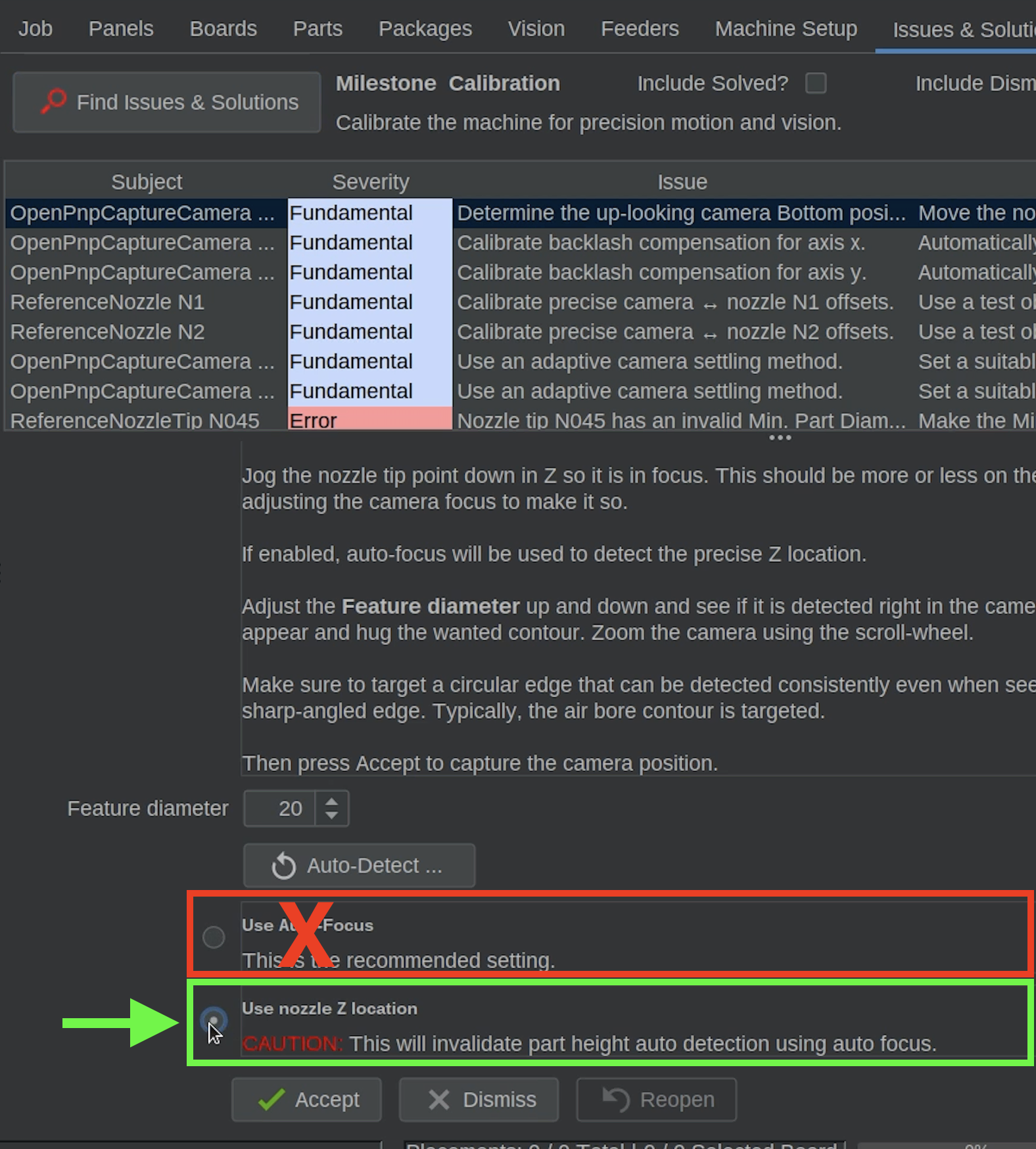
Do Not Use Auto-Focus
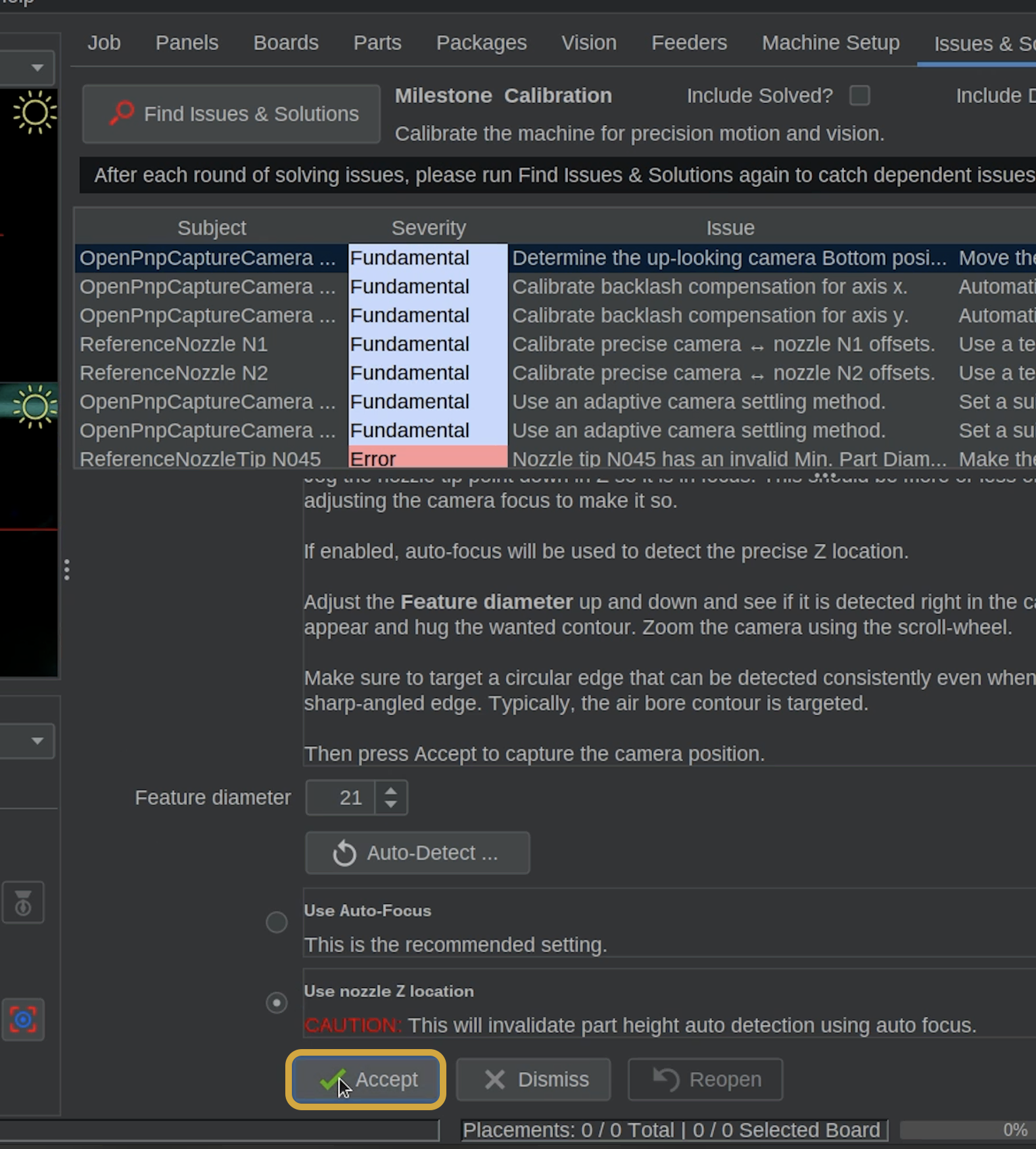
In this task, OpenPnP selects Use Auto-Focus by default.
For the LumenPnP, you must select Use nozzle Z location instead.
Using Auto-Focus can cause incorrect Z movements and potentially result in a nozzle collision during bottom camera position calibration.
-
Very important: Locate the two Z-height options in the Issues & Solutions task. You may need to scroll down to see them.
-
Select the second option: Use nozzle Z location.
- Do not select "Use Auto-Focus".
Step 3 of 10
Step 3: Find the Primary Fiducial Z-Height
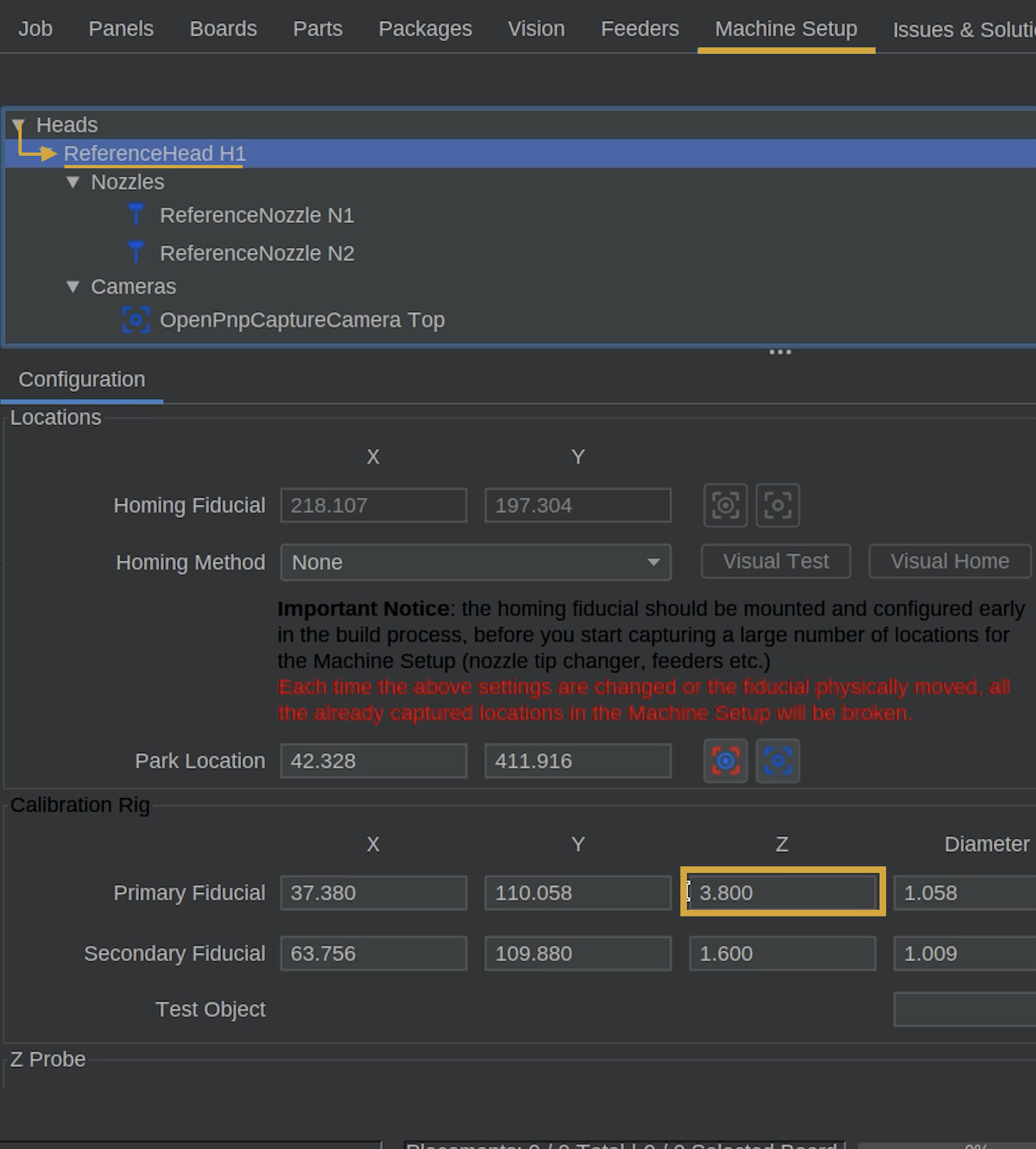
We'll use the Z-height recorded during the primary fiducial calibration.
- Open Machine Setup > Heads > ReferenceHead H1.
- Locate the Primary Fiducial Coordinates in this section and find the recorded Z value.
- Remember this value, as we'll use the same Z-height when positioning N1 over the bottom camera.
Why Use the Primary Fiducial Z-Height?
This height confirms the nozzle tip is at the correct reference plane used by the LumenPnP.
Using the same Z-height helps ensure the bottom camera is calibrated at the correct focal distance that it will use while in operation.
Step 4 of 10
Step 4: Align N08 with the Bottom Camera

- In Machine Controls, press the P (Park) button between the Z-Axis Jog Controls to raise the nozzles before moving.

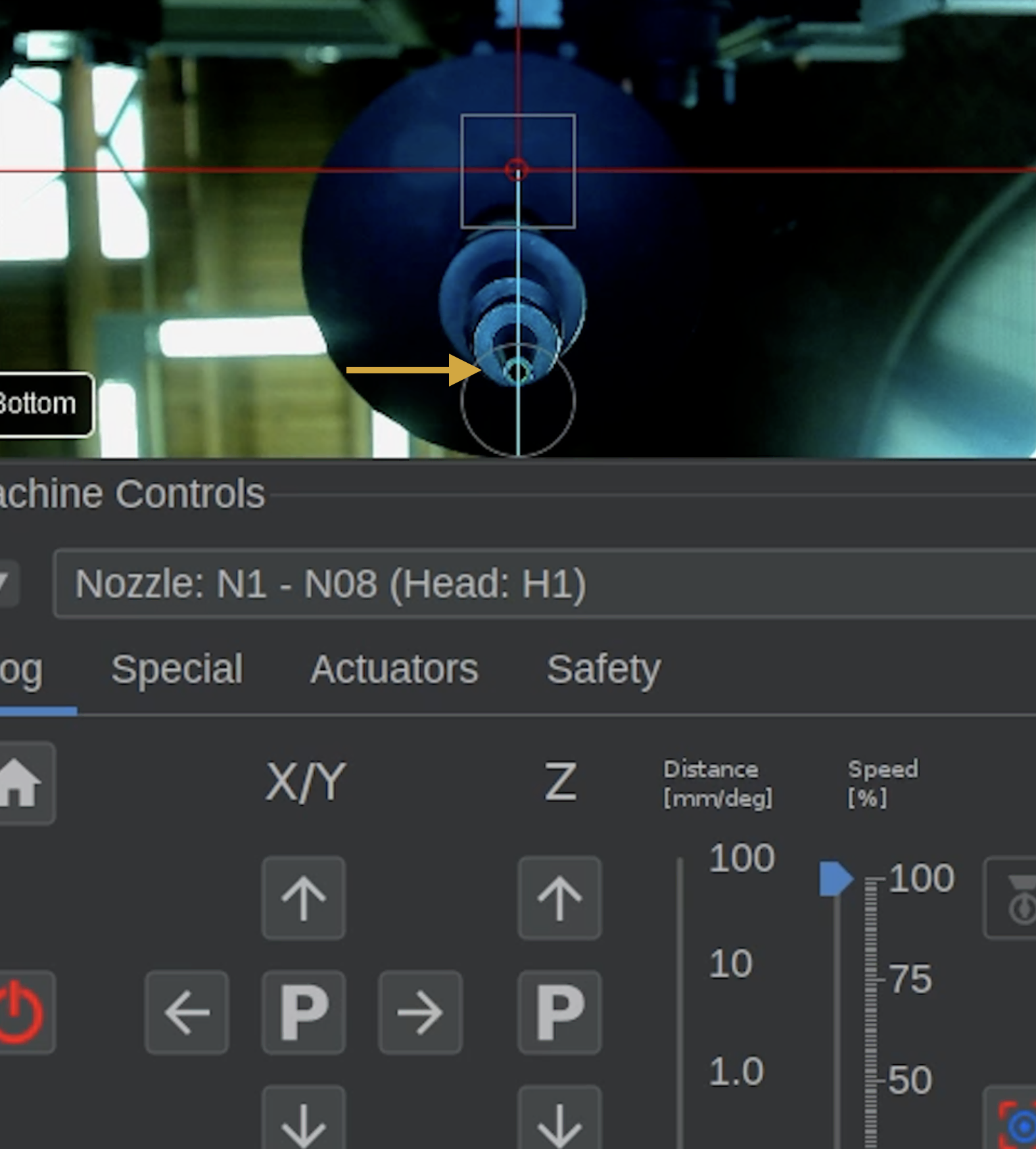
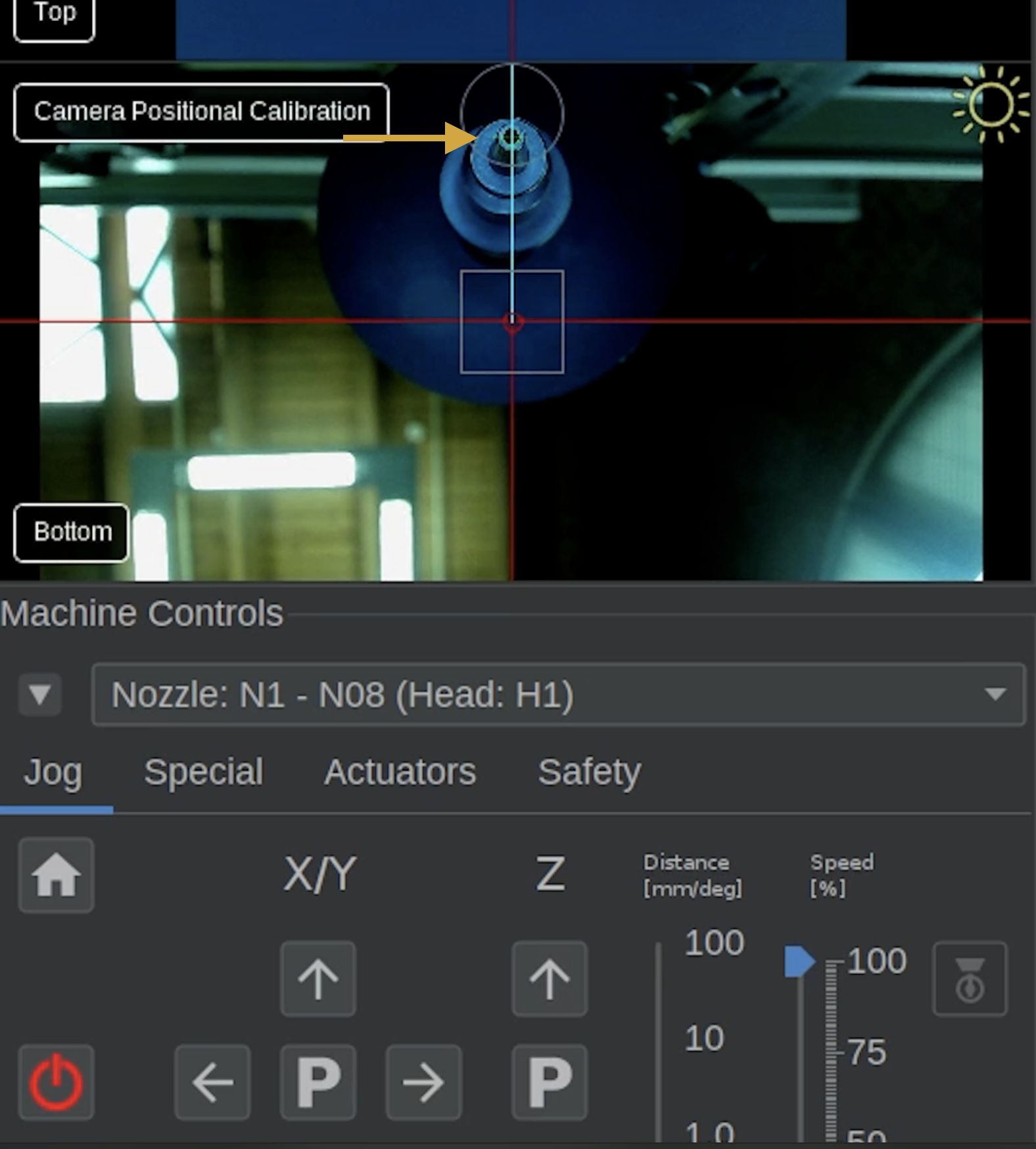
- Use the X/Y Jog Controls to move the N08 nozzle tip approximately over the bottom camera.
- Use the mouse scroll function to zoom in on the bottom camera feed
- Carefully lower the nozzle tip using the Z-Axis Jog Controls until the Z value in the DRO (digital read out) matches the Primary Fiducial Z-height recorded earlier. The DRO is located in the bottom right of OpenPnP in green and displays your current X, Y, and Z coordinates.
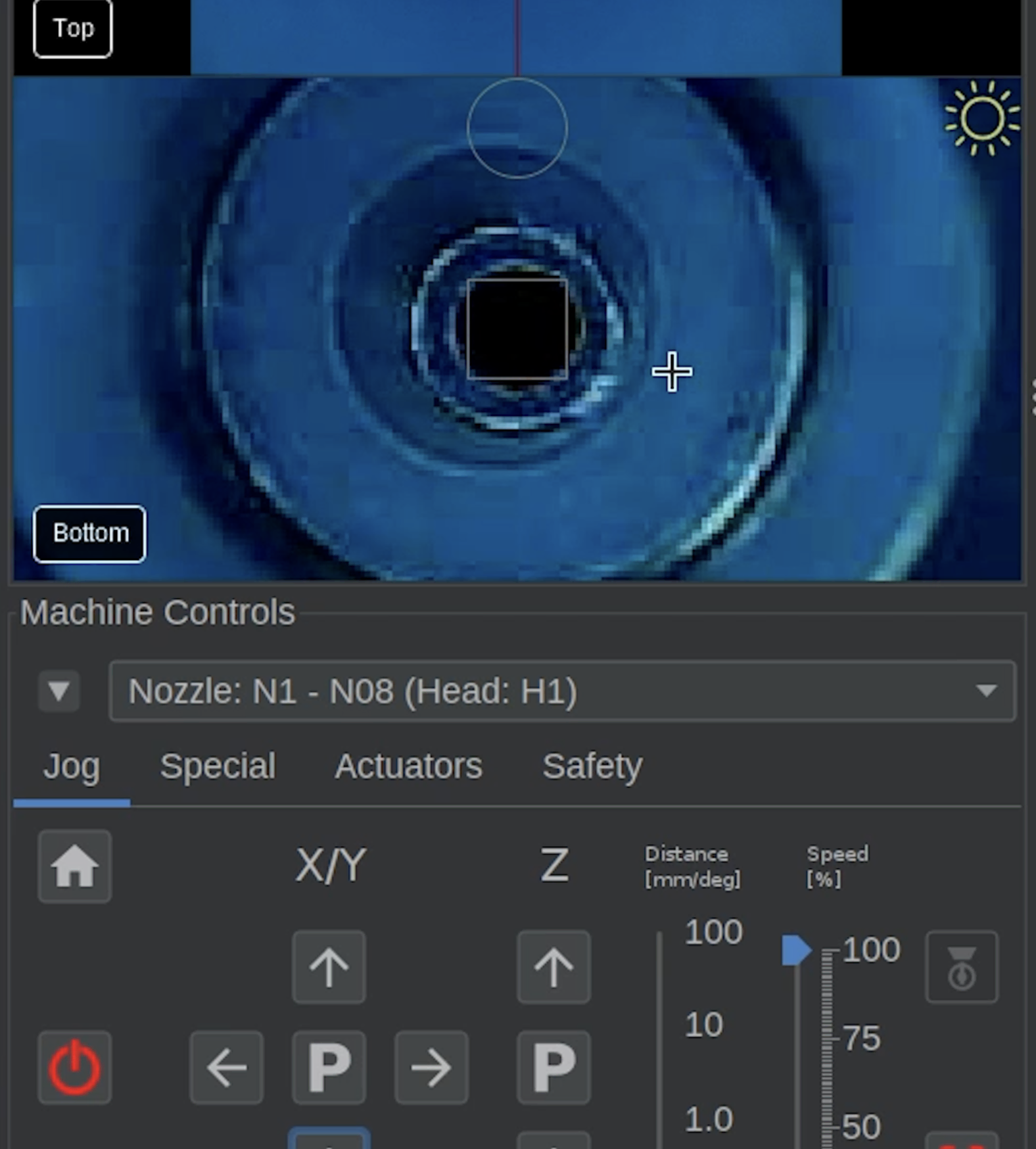
- Use smaller X/Y jog distances to precisely center the nozzle tip in the bottom camera preview.
Step 5 of 10
Step 5: Detect the N08 Nozzle Tip
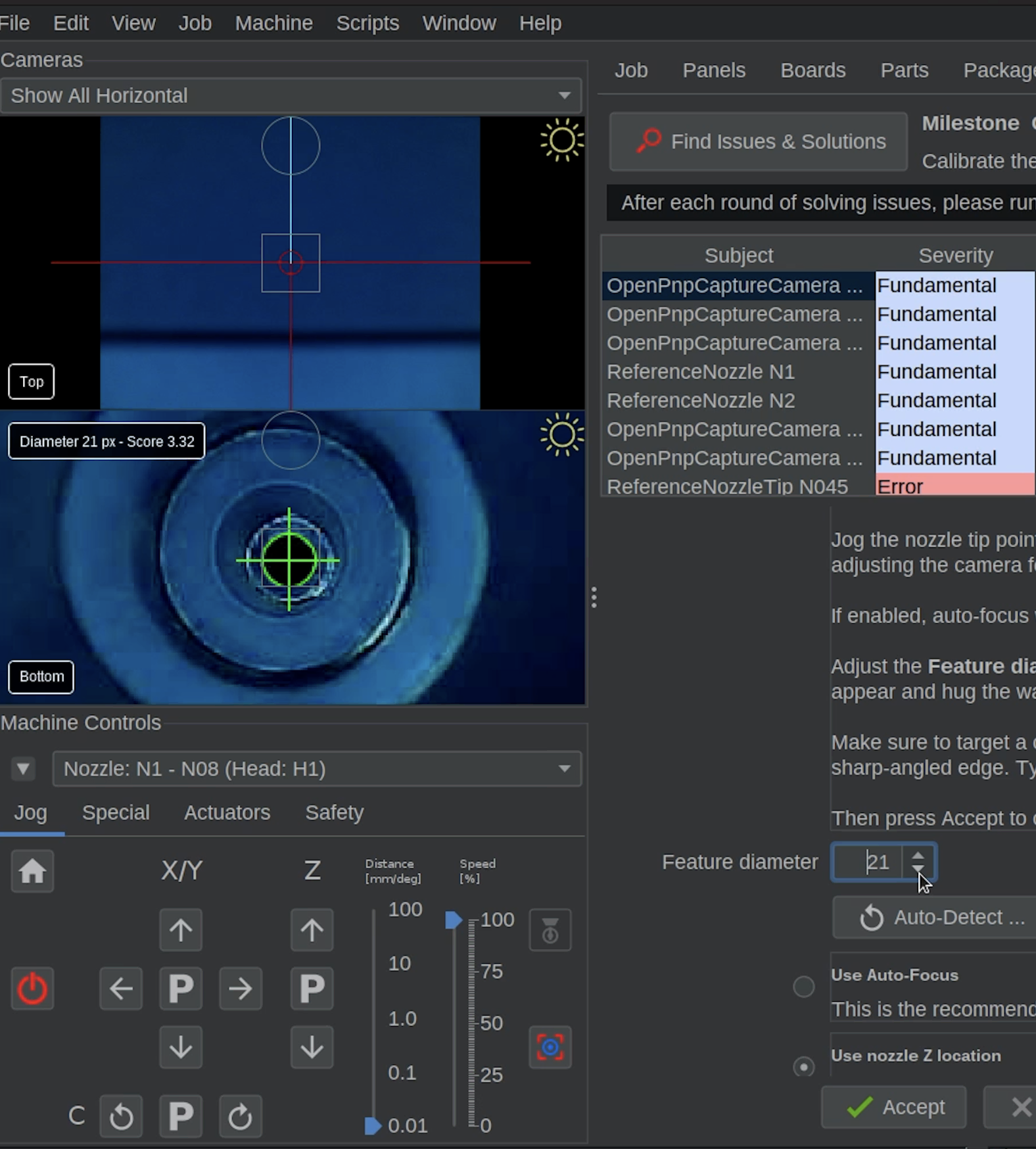
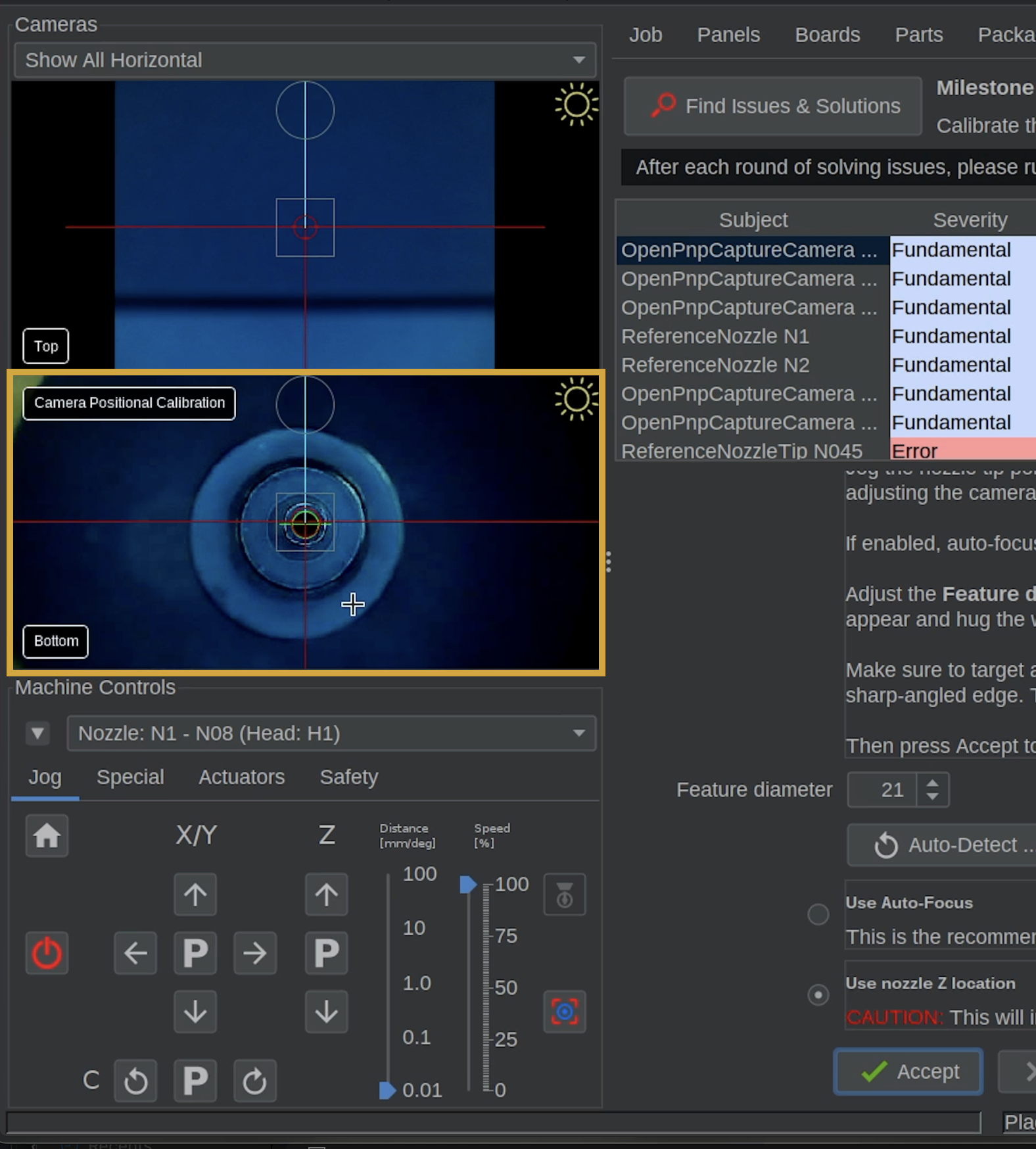
- Return to the bottom camera Issues & Solutions task and locate Feature Diameter.
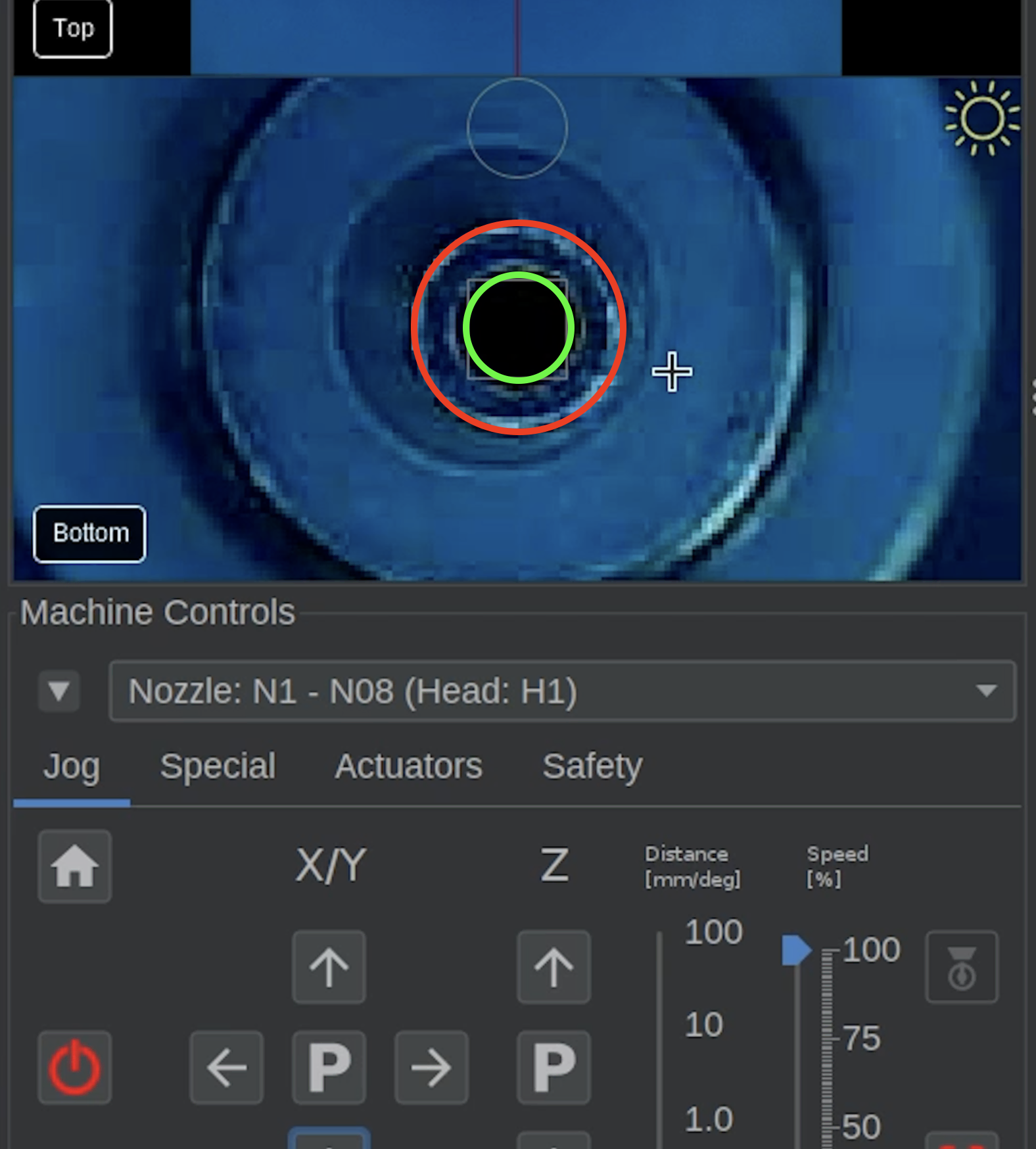
- Adjust the Feature Diameter until OpenPnP detects the inner opening of the N08 nozzle tip with a solid green circle.
- Make sure the green circle follows the small, dark opening in the center, not the larger outside edge of the nozzle tip. In the image, the green circle represents the correct opening to use.
Having Trouble Detecting the Opening?
Try adjusting the bottom camera's exposure to improve the contrast between the dark opening and the surrounding nozzle tip.
The goal is a clear, consistent detection of the inner opening.
Step 6 of 10
Step 6: Start and Watch the Calibration
- Once the nozzle opening is correctly detected, click Accept to begin the automated calibration.
- OpenPnP will move N1 around the bottom camera's field of view to calculate its position.
- Watch the bottom camera preview throughout the entire calibration.
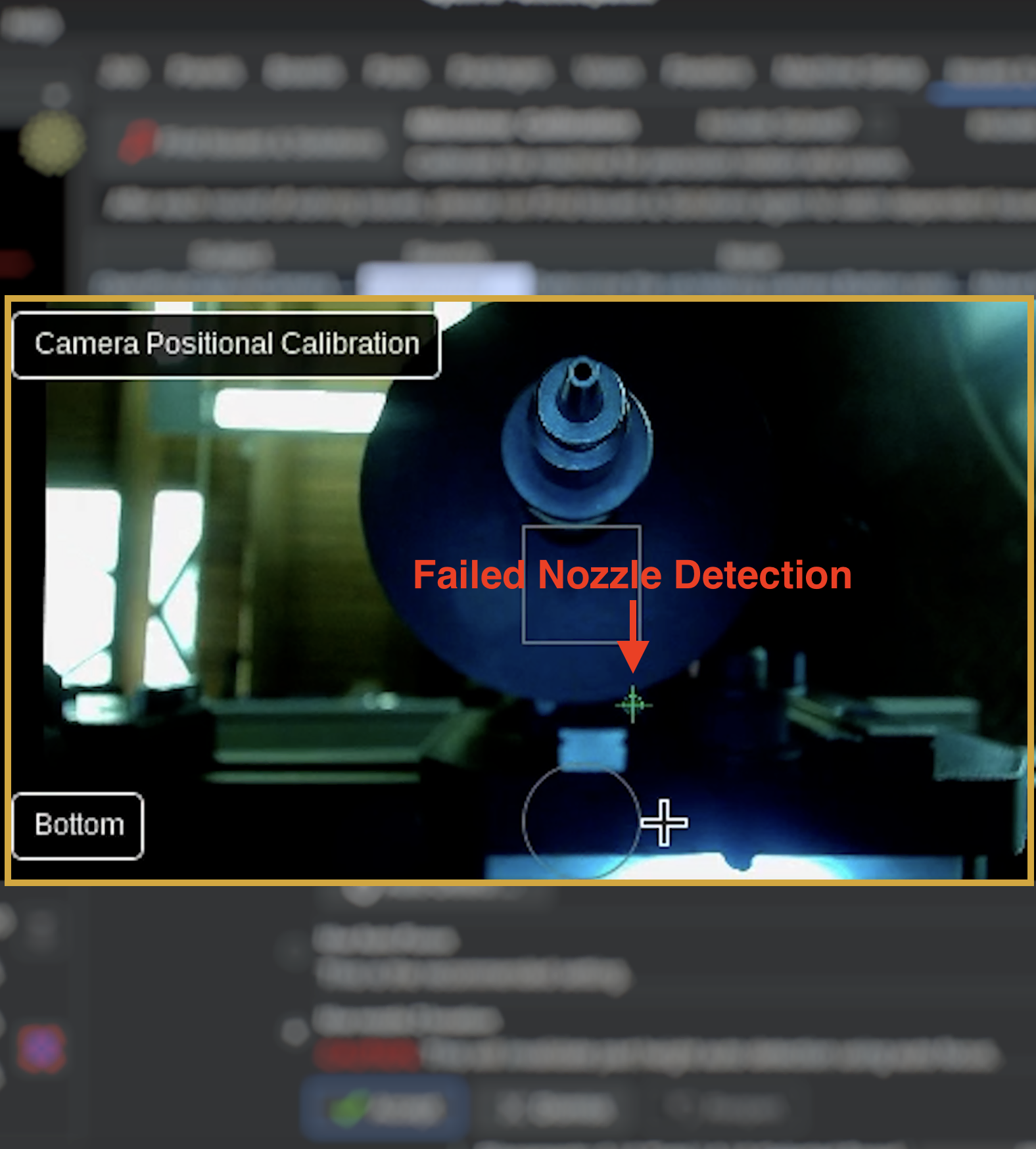
- Make sure the green detection circle continues to follow the actual nozzle tip opening, even when the nozle tip is near the edges of the camera view.
- It is important to watch for any incorrect detections during this calibration.
Watch for Incorrect Detection
During this bottom camera calibration, sometimes OpenPnP may detect reflections, nearby objects, or other visual artifacts instead of the nozzle tip opening because it uses the entire bottom camera feed. These areas are normally masked out when using the machine while picking a component, but the outer areas need to be exposed for this step.
This is especially important near the far edges of the bottom camera's view.
If the green detection circle moves away from the nozzle opening, the calibration may be inaccurate and should be re-opened. More details for if it fails can be found on the next page.
Step 7 of 10
Step 7: If Needed, Correct an Inaccurate Calibration
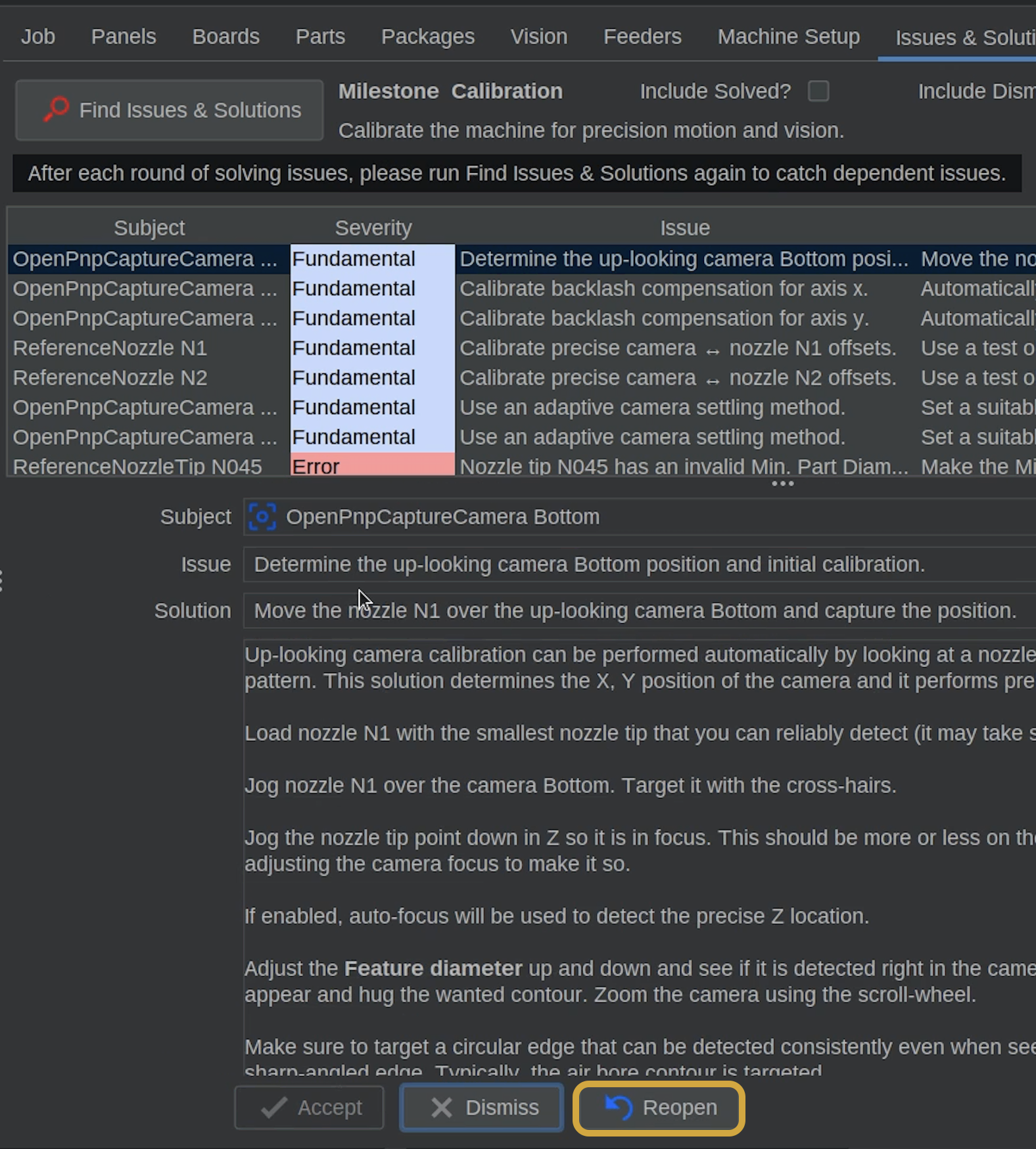
If the calibration detected an incorrect feature, we can reopen the task and run it again.
- Allow the automated calibration to finish, provided the machine is moving safely.
- Return to the completed issue and use the reopen control near the Accept and Dismiss buttons.
- Check the bottom camera preview for reflections or bright light sources that may be interfering with detection.
- If necessary, temporarily block a bright light source using your hand or another object, keeping it completely clear of the machine's movement path.
- Sometimes, adjusting the exposure for the bottom camera is what is needed.
- Recheck the Feature Diameter and repeat the calibration, watching the nozzle opening throughout the process.
Lighting Can Affect Detection
When the nozzle moves toward the edges of the bottom camera's view, bright light sources can sometimes cause false detections.
Blocking the light source can help OpenPnP consistently identify the correct nozzle opening.
Step 8 of 10
Step 8: Refresh Issues & Solutions
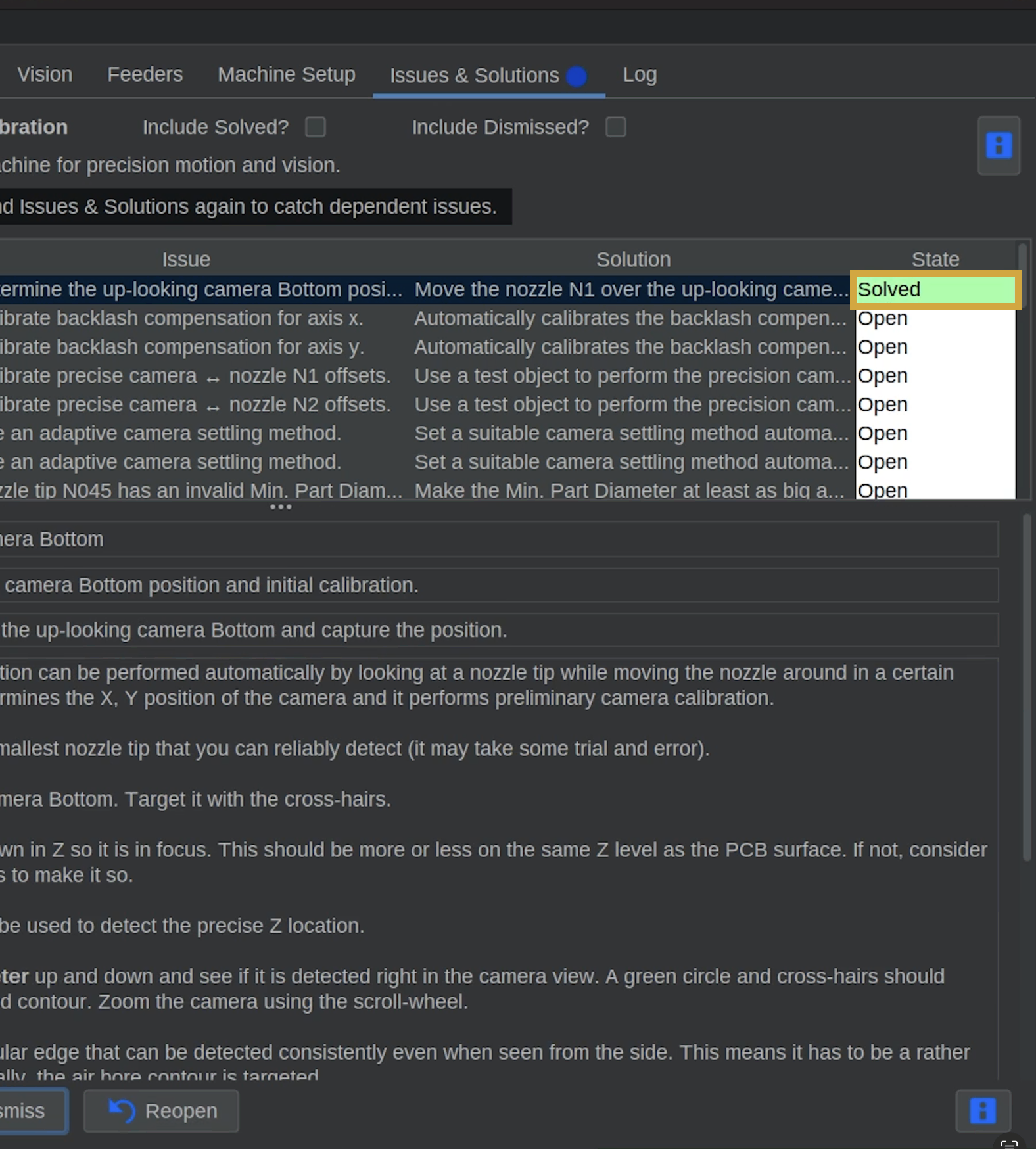
- Once the automated calibration finishes successfully and the nozzle opening was detected correctly throughout, confirm the task is marked Solved.
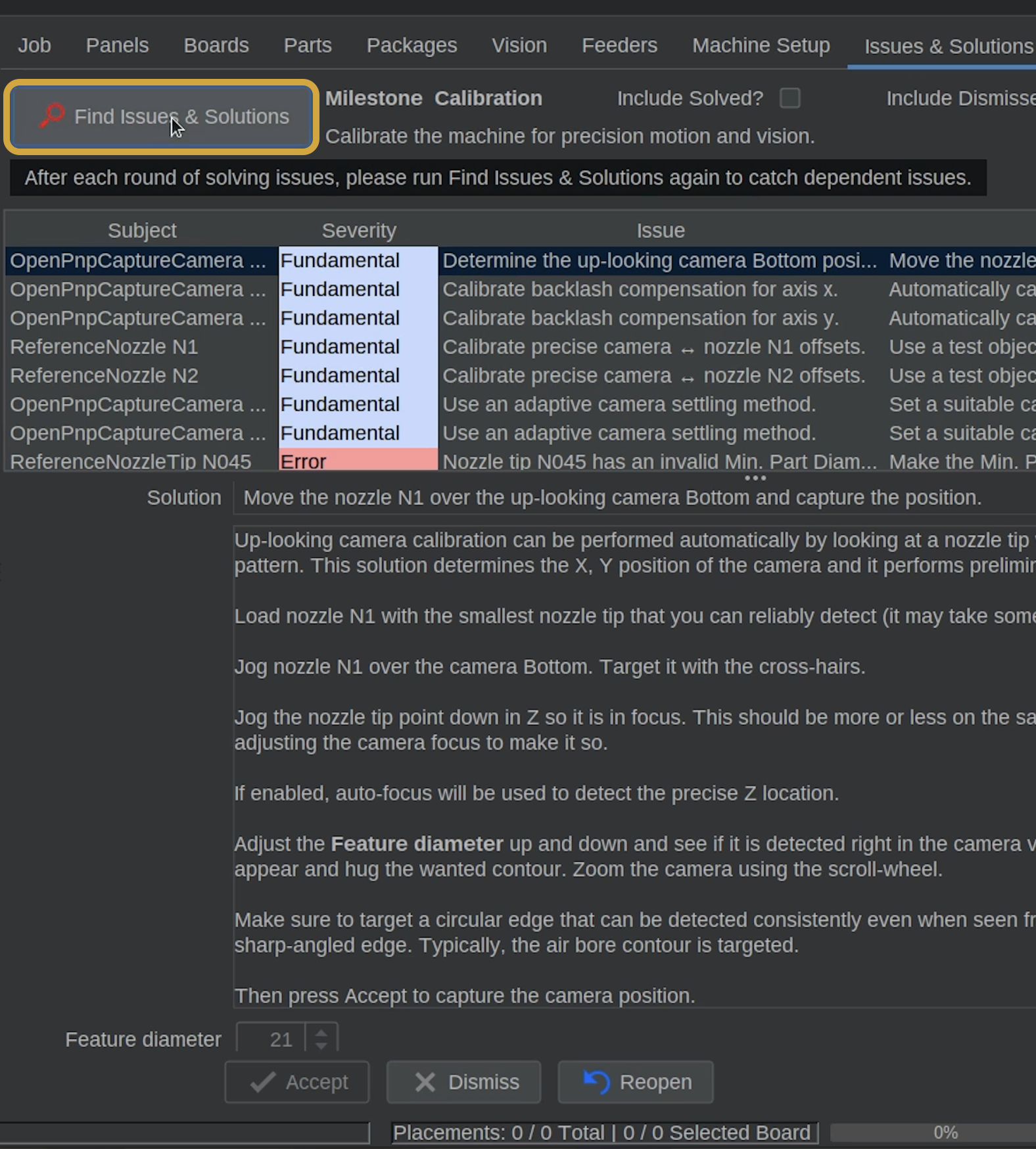
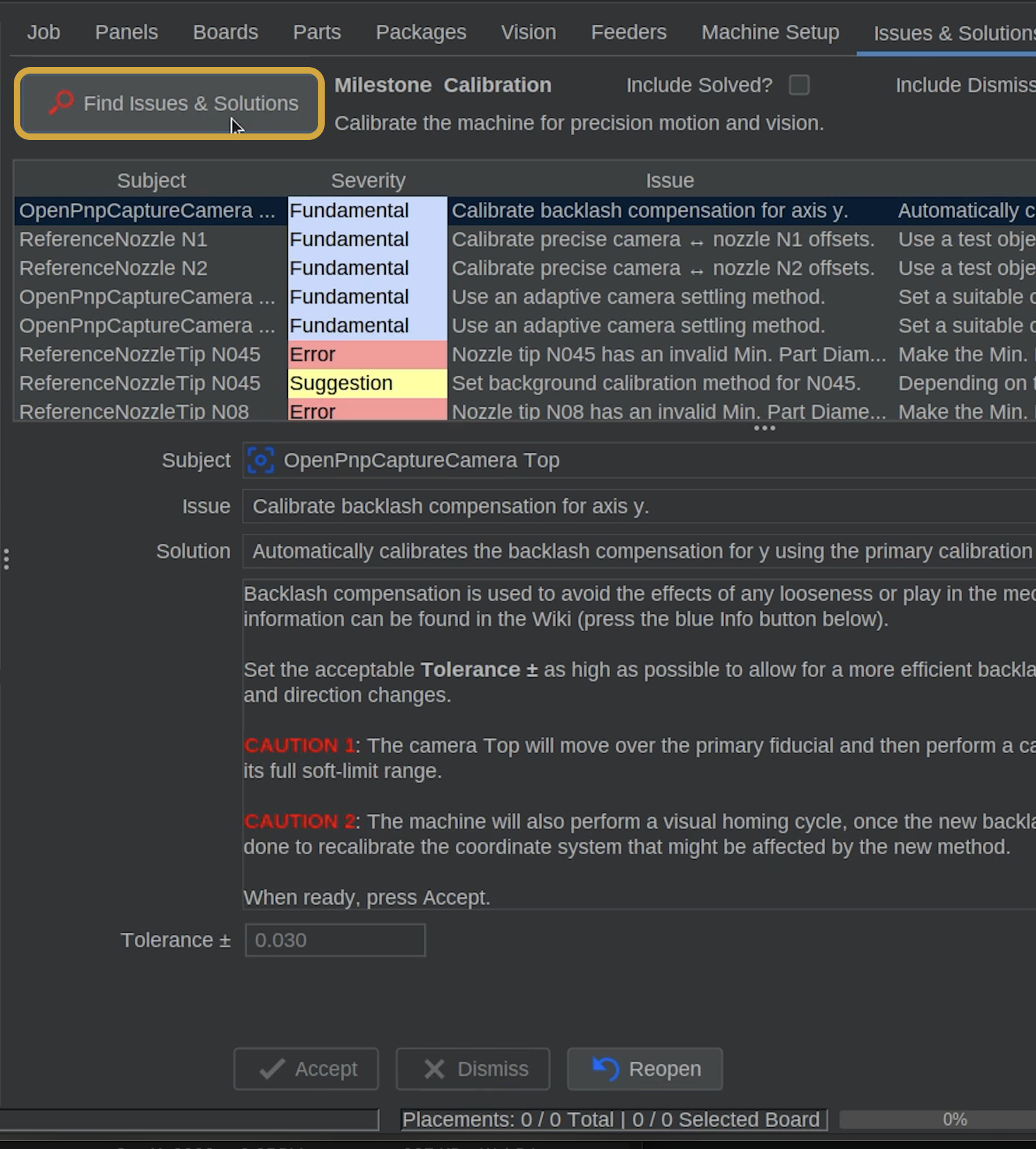
- Click Find Issues & Solutions to refresh the task list.
Bottom Camera Position Calibrated
OpenPnP has now established the position of the bottom camera relative to the machine.
We can continue to the next calibration tasks.
Step 9 of 10
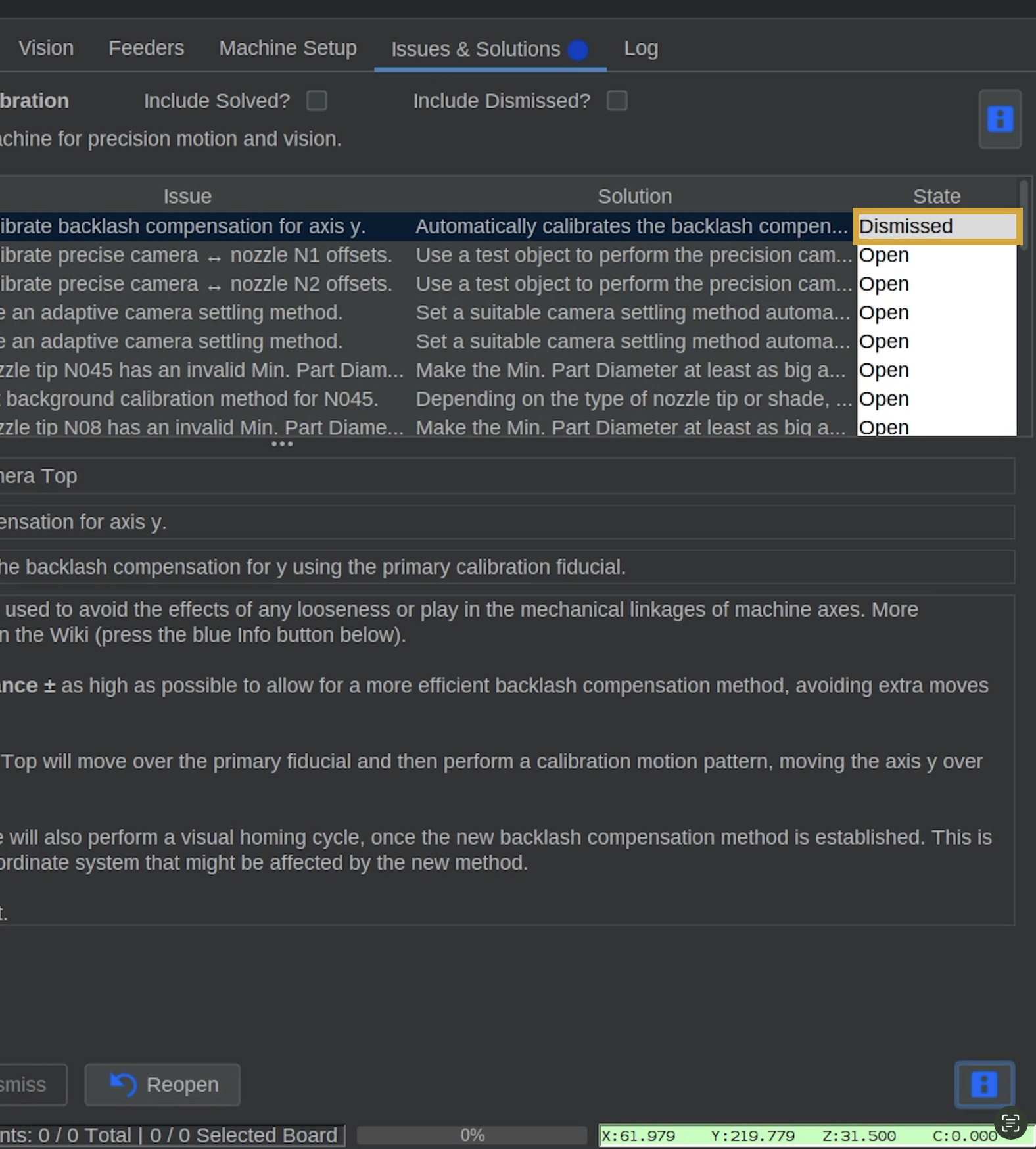
Step 9: Dismiss X and Y Backlash Compensation
The next two Issues & Solutions tasks will be dismissed. They involve backlash compensation for the X and Y axes.
These are not needed during standard LumenPnP calibration.
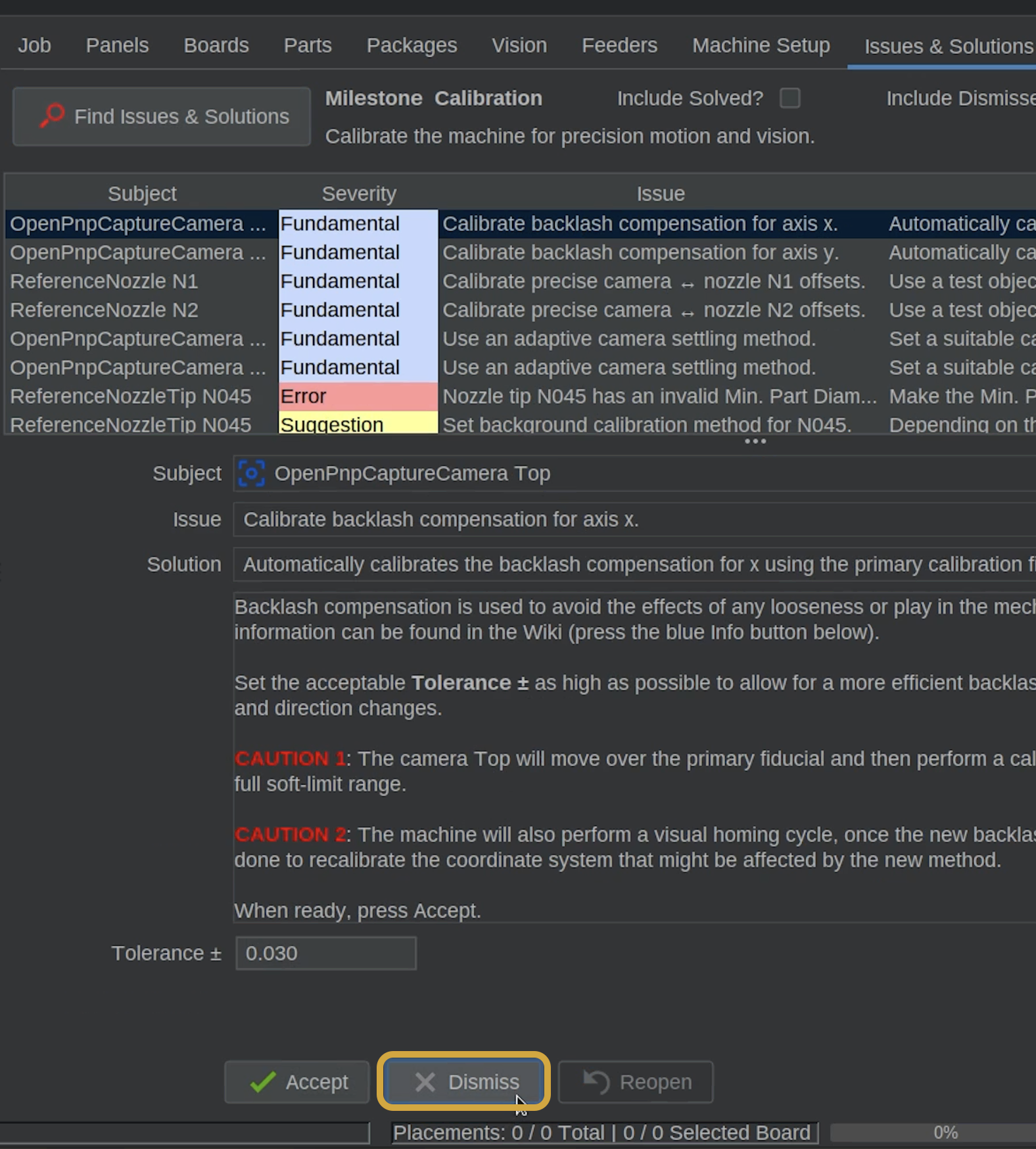
- Locate Calibrate backlash compensation for axis X.
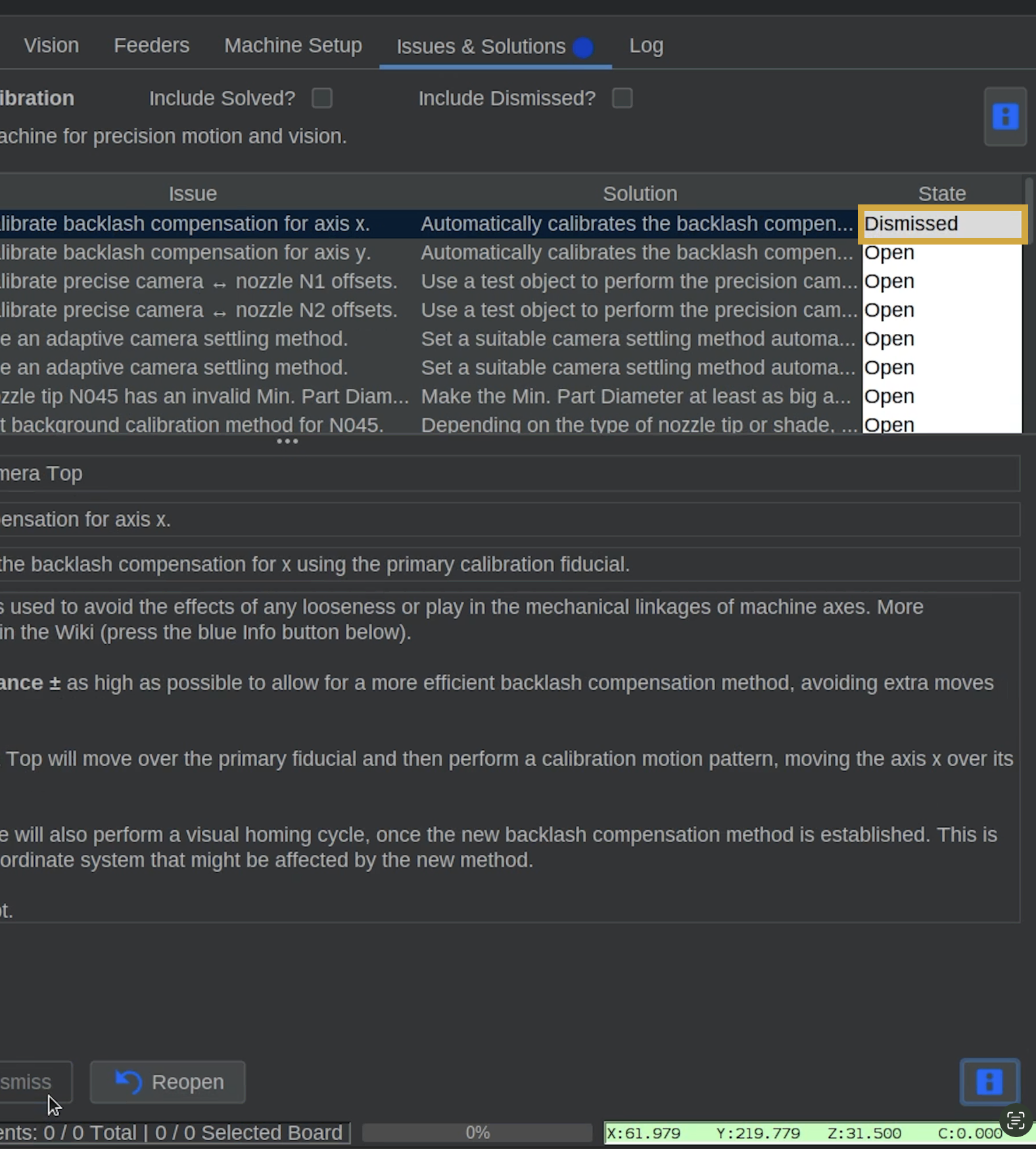
- Select Dismiss to skip this task.
- Confirm the step is marked as Dismissed.
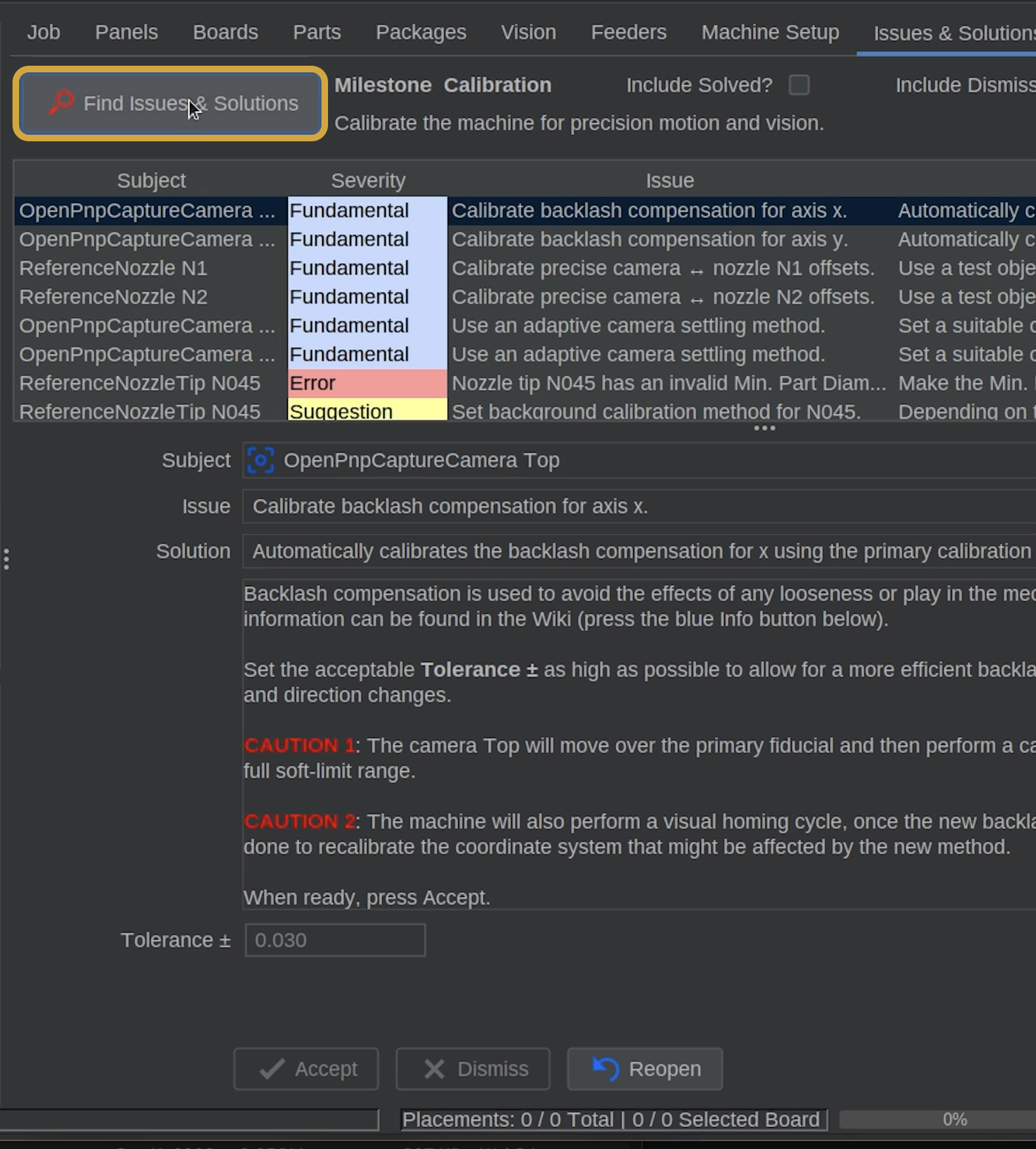
- Click Find Issues & Solutions to refresh the list**.
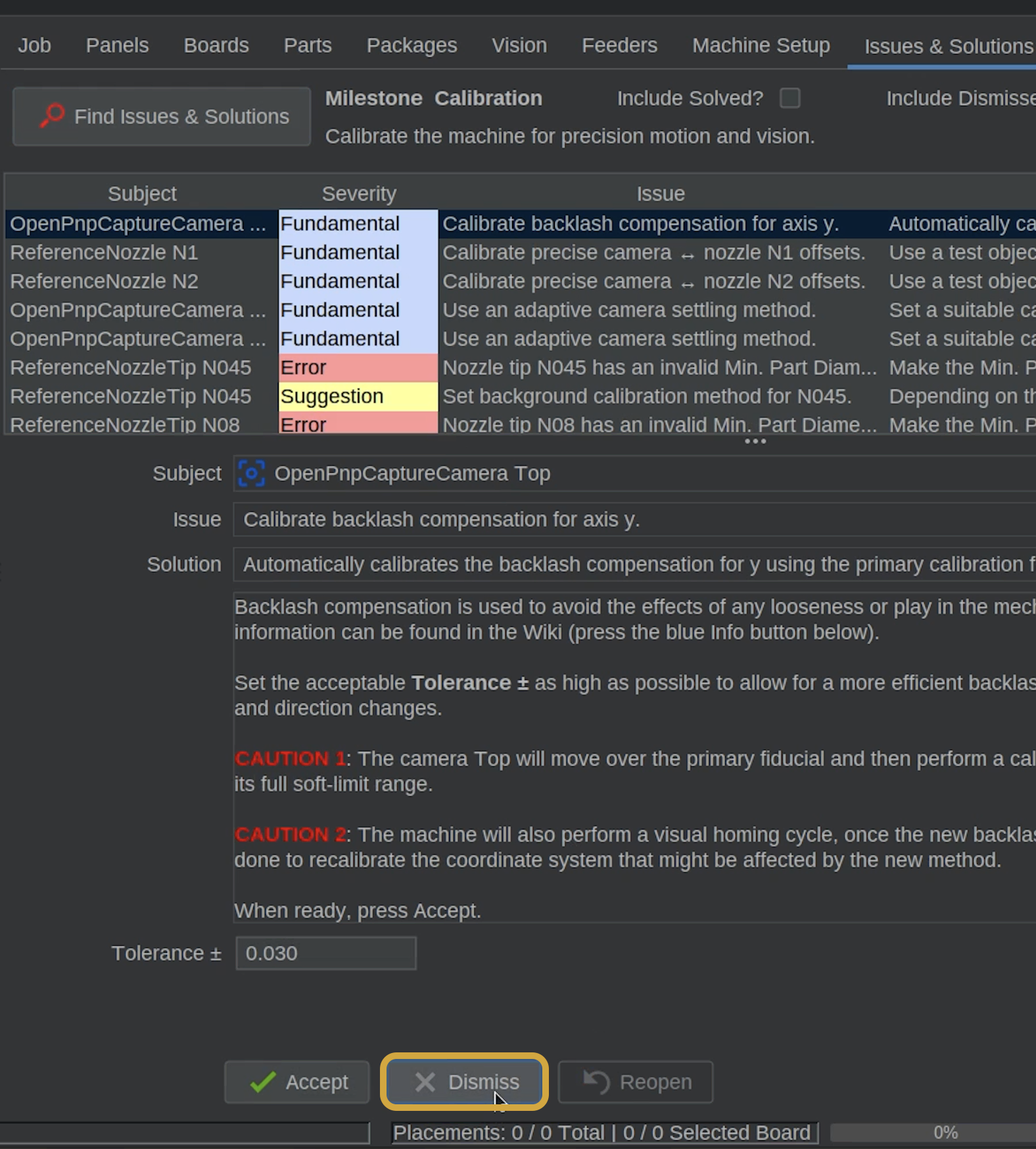
- Locate Calibrate backlash compensation for axis Y.
- Select Dismiss to skip this task.
- Confirm the step is marked as Dismissed.
- Click Find Issues & Solutions to refresh the list after dismissing the tasks.
Why Skip Backlash Compensation?
The LumenPnP uses one-sided positioning to minimize the effects of backlash.
If you experience positioning accuracy issues and think you need to run these steps, reach out to Opulo support https://support.opulo.io
Step 10 of 10
Next Steps
Next, we'll begin the precise nozzle offset calibration, starting with nozzle N1.